
Universal Policy Administrator Documentation
-
Introduction to Universal Policy Administrator
-
Installing Universal Policy Administrator
-
Setting up UPA Delegation
-
Working with Universal Policies
- Intro to Working with Universal Policies
- Creating Universal Policies
- Adding and Editing Policies
- Approving Universal Policies
- Exporting Universal Policies and Updating OU Links
- Finding and Resolving Duplicate and Conflicting Settings
- Merging Policies
- Rolling Back Policies
- Replicating Policies
- Synchronizing Policies (Gold Policy)
- Managing Security Filtering
- Working with ADMX Templates
-
Working with Domains and OUs
-
Migrating to UPA
-
Reporting on Universal Policies
-
UPA Configuration Settings
- Configuring SAML Authentication via Microsoft ENTRA ID
- Configuring UPA to use a Third-Party Identity Provider
- Configuring OIDC Authentication with OKTA
- Configuring OIDC Authentication with Microsoft Entra ID
- Configuring SAML authentication with Okta
- Configuring the Universal Policy Administrator Syslog Provider
-
Appendix
- Working with Citrix Policies
- Troubleshooting
- Domain Import – Skipping GPOs
- Adding an Additional Group with Read, Write, or Modify Security to a GPO
- Updating the UPA SSL Certificates
- UPA PowerShell Cmdlets
- Updating the License File
- UPA Disaster Recovery Guide
- Change UPA Logging Level
- Uninstalling UPA
- Release Notes
< All Topics
Print
Merging Policies
Merge policies to reduce the number of policies, consolidate and remove redundancies to make policy management simpler.
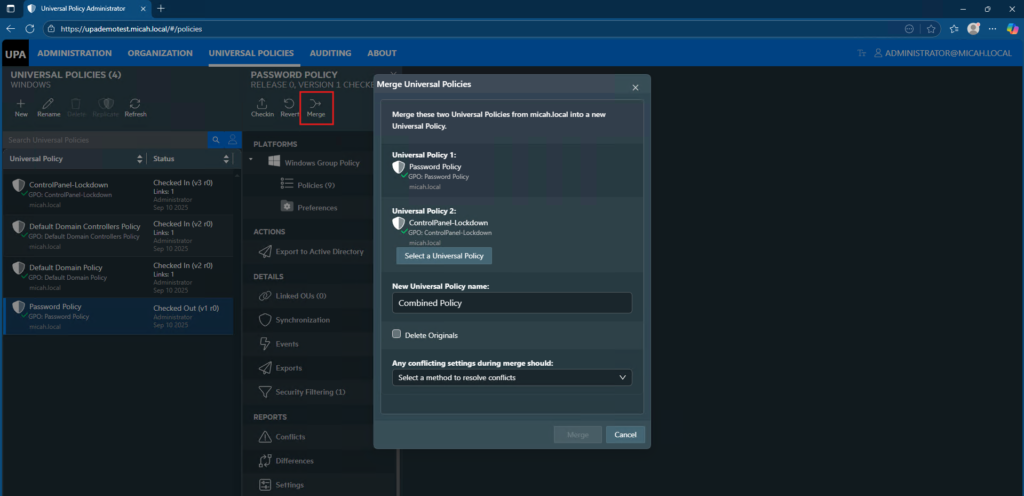
To merge a Universal Policy, the policy must be Checked out.
- Select a Checked out policy and click Merge.
- Select the Universal Policy 2 to merge with.
- Enter a name for the newly merged Universal Policy.
- Optionally click to Delete Original policies
- Select a method to handle conflicting settings from the Any conflicting settings during merge should drop down menu item.
- Click Merge.
- The newly created policy will be in the Universal Policies tab.
In This Article