
Working with ADMX Templates
ADMX files are XML-based administrative templates that Windows Group Policy uses to define the settings that can be configured: what the policies are, how they are displayed, and which registry keys and values they map to.
UPA centralizes ADMX management so that administrators control which ADMX files are added and updated across the organization. The standard Windows administrative templates are built into UPA. For a template UPA does not include, such as Microsoft Office, Google Chrome, a third-party vendor’s template or one of your own, you add it to UPA once. Its settings are then available in every Universal Policy.
Where UPA Finds Templates to Add
| LOCATION | WHEN TO USE IT | |
|---|---|---|
| Central Store (default) | \\SYSVOL<domain>\Policies\PolicyDefinitions | The templates are already in your Central Store |
| Designated folder | Any folder you choose, set once on the UPA server | You want a separate, controlled location for the templates you add, with its own permissions |
To use the Central Store, go to To Include ADMX Files in UPA. To use a designated folder, complete Setting Up a Designated Folder first.
To Include ADMX Files in UPA:
- Log in to the Web Console as an Administrator.
- Go to the Universal Policies tab.
- Select a Universal Policy that you have checked out.
- Open Policies › Administrative Templates and click New.
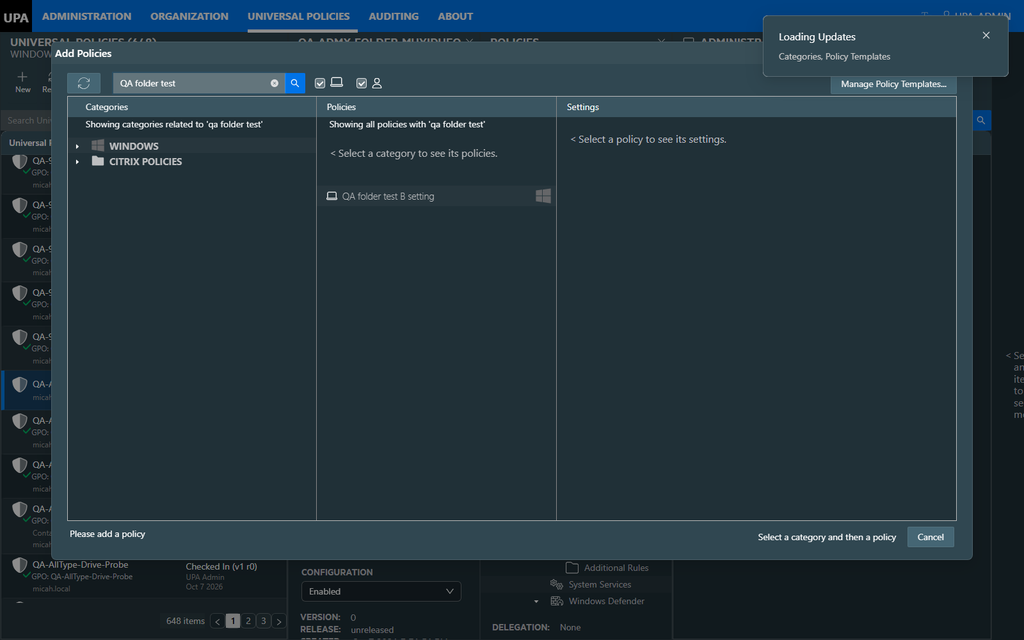
- On the Add Policies dialog, click Manage Policy Templates….
- On the Available Additions tab, select the templates to include, or click Select All. The tab lists the templates UPA does not have yet. Click the refresh button if you have just copied files in.
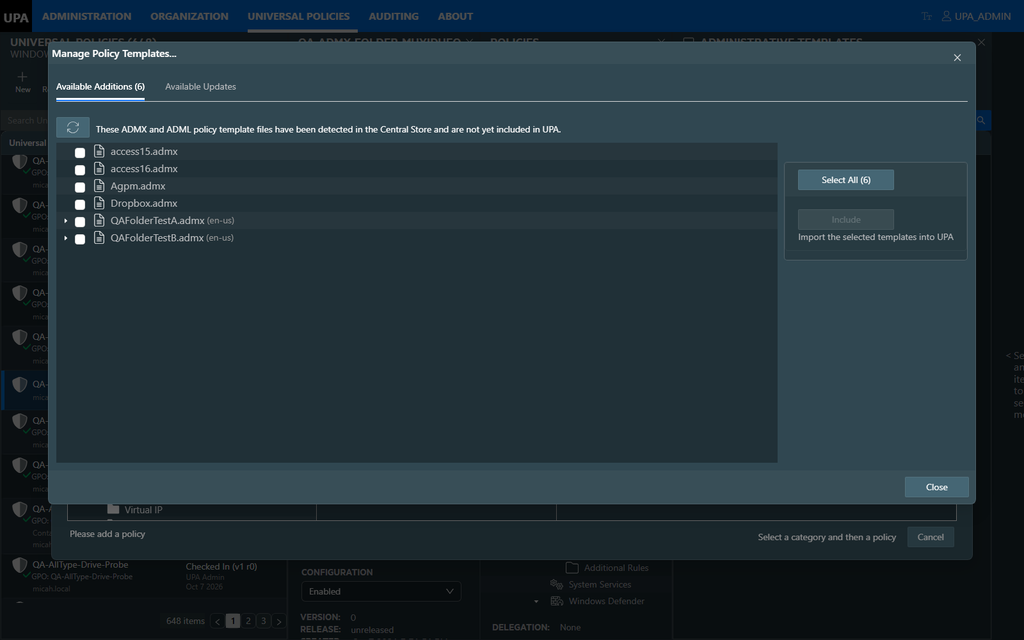
- Click Include. Each template leaves the list once it is added.
- Close the dialog. The settings from the new templates are available in Add Policies.
The dialog says “…detected in the Central Store…” even when UPA is reading a designated folder. The templates listed are the ones in your folder.
The following video shows how to add ADMX templates to UPA, using the Dropbox ADMX as an example.
Setting Up a Designated Folder
Complete these steps once. They are required whether you add templates from the Web Console or with PowerShell.
- Create a folder that the UPA server can reach. A folder under SYSVOL replicates to every domain controller and is backed up. For example:
\\micah.local\SYSVOL\micah.local\Policies\PolicyDefinitions_UPA- Copy the ADMX files into the folder, and the ADML files into a language subfolder such as en-us. UPA takes each ADML file’s language from the name of its folder.
PolicyDefinitions_UPA\
    Dropbox.admx
    access16.admx
    en-us\
        Dropbox.adml
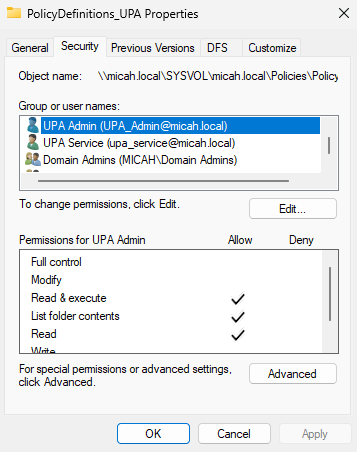
access16.adml- In the folder’s Properties › Security, give these two accounts Read & execute:
| ACCOUNT | WHY IT NEEDS ACCESS |
|---|---|
| UPA Admin | The administrator who adds templates in the Web Console |
| UPA Service | The service account UPA uses to read the files when they are added |
- On the UPA server, edit C:\Program Files\FullArmor\AD Bridge\Gateway\WebApp\web.config. Inside <appSettings>, add one line with the path of your folder:
<appSettings>
  <add key="DesiredADMFilePath"
       value="\\micah.local\SYSVOL\micah.local\Policies\PolicyDefinitions_UPA"/>
</appSettings>- Restart the UPA Gateway: run iisreset, or restart its site or application pool in IIS Manager.
UPA now offers the templates in your folder instead of the Central Store.
The following video shows how to add your own ADMX templates to UPA from a designated folder.
Adding Templates with PowerShell
Import-ADM-Files.ps1 adds every template in the folder. It is installed with the UPA PowerShell Tools.
- Open Windows PowerShell (5.1, not PowerShell 7) as an administrator.
- Go to the folder that holds the script:
cd 'C:\Program Files\FullArmor\AD Bridge\Powershell Snapin'- Run the script. Give -Folder exactly the path set in web.config:
.\Import-ADM-Files.ps1 -UPAUrl 'https://upa.micah.local'
-Folder '\\micah.local\SYSVOL\micah.local\Policies\PolicyDefinitions_UPA'- Enter your UPA credentials. The script prints one Added … line for each file. Templates UPA already has are skipped.
Add -SkipSSLVerification if the UPA server uses a self-signed certificate.
Verifying the Templates Were Added
- In the Web Console, the template no longer appears on the Available Additions tab, and its settings appear in Add Policies.
- In PowerShell, Get-UnAddedADMFiles lists the templates UPA does not have yet. An added template is no longer in that list.
Added templates stay in UPA after an IIS restart, and after the web.config setting is removed.
Troubleshooting
| WHAT YOU SEE | WHAT TO DO |
|---|---|
| The Web Console offers Central Store templates, not the ones in your folder | Check that the DesiredADMFilePath line is inside <appSettings>, then run iisreset |
| The script stops with 500: Invalid ADMX document <name>.adml: Value cannot be null | Check that the folder is set in web.config, and that -Folder is exactly the same path |
| The script lists Central Store files and then stops | Add -Folder with the path of your folder |
| Fewer templates are offered than are in the folder | Only templates UPA does not have yet are offered |
| An ADML file has no language, or is not paired with its ADMX file | Move the ADML file into a language subfolder such as en-us |
| Access denied | Give UPA Service Read & execute on the folder |
| Add-PSSnapin is not recognized | The script was run in PowerShell 7. Use Windows PowerShell 5.1 |