
Migrating from NetIQ Group Policy Administrator (GPA) to UPA
What the migration does
The migration moves the GPOs in your GPA repository into UPA, together with their history: every checked-in version, who checked it in, and who requested and approved it.
| GPA | BECOMES IN UPA |
|---|---|
| A GPO in the repository | One Universal Policy with the same name |
| Each checked-in version, oldest first | A version of that Universal Policy, with the original date, person and comment |
| Send for approval and Approve | The Universal Policy’s submit and approval, with the original GPA dates, people and comments |
| The GPA category the GPO is in (for example Category_A1) | A delegation OU in UPA with the same name, holding the Universal Policy. Nested categories stay nested |
The migration only reads the GPA repository. GPA keeps working until you retire it.
Before you start
| YOU NEED | DETAILS |
|---|---|
| UPA, with your domain imported | The domain whose GPOs are in the GPA repository must already be imported into UPA |
| A machine to run it on | One with the UPA PowerShell Tools installed that can reach the GPA SQL Server and the import share. The GPA server is a natural choice |
| Internet access, or the SqlServer module | Each run starts with Install-Module SqlServer, which downloads it from the PowerShell Gallery if it isn’t installed. On a server without internet access, install the SqlServer PowerShell module first |
| Access to the GPA database | The connection string for the GPA repository database (by default GPO_REPOSITORY), and an account that can read it |
| An import share | A shared folder the script writes each GPO version to, for UPA to import. See Set up the import share below |
| A UPA account | One that can create and approve Universal Policies. The script asks for it when it starts |
| A backup of the GPA database | The migration doesn’t change it, but the backup is your record of the original history |
Migrate before you edit in UPA. Importing your domain already created a Universal Policy for each GPO in AD, without its GPA history. The migration replaces it (see -Overwrite below), so any change you make to that Universal Policy in UPA first is lost.
Set up the import share
The script copies each GPO version from the GPA database into a shared folder, then tells UPA to import it from there. Two accounts use the share:
| ACCOUNT | WHY | NEEDS |
|---|---|---|
| The Windows account that runs the script | Writes each GPO version into the share | Modify (folder) and Change (share) |
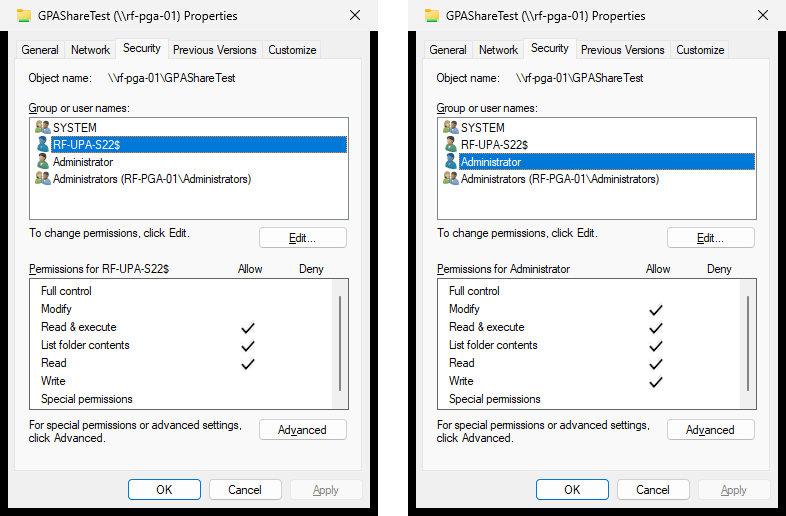
| The UPA server’s computer account, DOMAIN\UPASERVER$ | UPA’s services run as Network Service, so UPA reads the share as the UPA server’s computer account | Read & execute (folder) and Read (share) |
- Create a folder on a server both machines can reach, for example C:\GPAImport on the GPA server.
- Share it (folder › Properties › Sharing › Advanced Sharing). Give the script’s account Change and the UPA server’s computer account Read. Everyone Full Control at the share level also works, because the folder permissions below still apply.
- Set the folder permissions (folder › Properties › Security › Edit). Add the script’s account with Modify, and add the UPA server’s computer account with Read & execute. To find a computer account, click Object Types… and tick Computers.
The import share’s Security tab: on the left, the UPA server’s computer account (here RF-UPA-S22$) with Read & execute; on the right, the account that runs the script with Modify:
These two accounts are all the share needs. The domain account UPA uses to import and export GPOs does not need access to it.
Step 1: Build the connection string
The script reads the GPA repository with the SQL Server PowerShell module. A typical connection string, using your Windows login:
Server=gpasql.contoso.com;Database=GPO_REPOSITORY;Integrated Security=True;TrustServerCertificate=TrueInclude TrustServerCertificate=True unless your SQL Server has a certificate this machine trusts. The current SqlServer module encrypts the connection and checks the server’s certificate. A default SQL Server install uses a self-signed certificate, so without this setting the script stops at its first query:
“The certificate chain was issued by an authority that is not trusted.”
The script then also reports “Incorrect syntax was encountered while parsing ””; the certificate message is the real cause.
To use a SQL login instead, replace Integrated Security=True with User ID=…;Password=…. The migration report never shows the password.
Step 2: Open PowerShell in the Snapin folder
Open Windows PowerShell as administrator, then go to the folder where the UPA PowerShell Tools installed the scripts:
cd "C:\Program Files\FullArmor\AD Bridge\Powershell Snapin"Run the script from this folder. It loads Migration-Shared.psm1 from the current folder, so starting it from anywhere else fails with “The specified module … Migration-Shared.psm1 was not loaded”. Use Windows PowerShell 5.1, not PowerShell 7.
Step 3: Do a dry run
A dry run lists what would be migrated and writes the migration report, without changing anything:
$gpa = 'Server=gpasql.contoso.com;Database=GPO_REPOSITORY;' +
       'Integrated Security=True;TrustServerCertificate=True'
.\Import-GPA-GPOs.ps1 -GPAConnectionString $gpa -SharePath '\\gpaserver\GPAImport' `
    -UPAUrl 'https://upa.contoso.com' -Domain contoso.com -DryRun
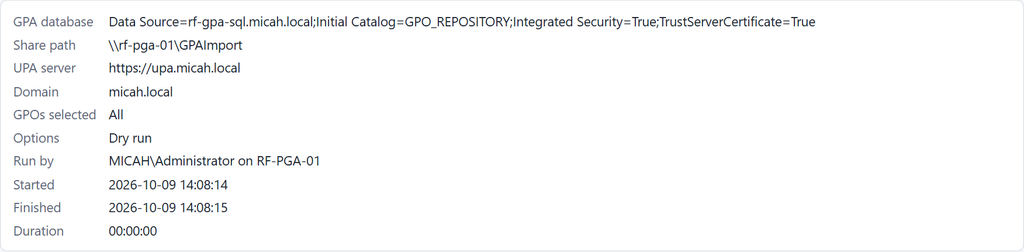
The report’s run details confirm which database, share and domain were used:
Step 4: Run the migration
Start with a few GPOs: pass their GPA IDs to -TargetGPOs (as shown in the dry-run report, without braces), check them in UPA, then run the rest.
# a pilot of two GPOs
.\Import-GPA-GPOs.ps1 -GPAConnectionString $gpa -SharePath '\\gpaserver\GPAImport' `
    -UPAUrl 'https://upa.contoso.com' -Domain contoso.com -Overwrite `
    -TargetGPOs 'eaf88b55-f410-4751-a381-e4f1612b1b97', '939923b7-704a-44da-b4f2-4262ea73447c'

# everything
.\Import-GPA-GPOs.ps1 -GPAConnectionString $gpa -SharePath '\\gpaserver\GPAImport' `
    -UPAUrl 'https://upa.contoso.com' -Domain contoso.com -Overwrite
The script shows a line for each GPO, such as “Successfully migrated policy … “, and ends with the path of the migration report.
The script’s options
| OPTION | WHAT IT DOES |
|---|---|
| -GPAConnectionString | The connection string for the GPA repository database (step 1). Required |
| -SharePath | The import share. Required |
| -UPAUrl | The address of your UPA server. Required |
| -Domain | The domain whose GPOs to migrate. It must already be imported into UPA. Required except for a dry run; a dry run without it covers every domain in the repository |
| -DryRun | List what would be migrated, without changing anything |
| -Overwrite | Replace Universal Policies that already exist with these names. Usually needed: see below |
| -TargetGPOs | Migrate only these GPOs, by GPA ID, for example a pilot group |
| -ImportAllCategories | Create a delegation OU for every GPA category, including empty ones. Without it, only categories that contain a migrated GPO are created |
| -Credential | The UPA account. If you leave it out, the script asks for it |
| -SkipSSLVerification | Only if your UPA server uses a certificate this machine doesn’t trust |
| -ReportPath | Where to save the migration report. By default, GPA-Migration-Report-<date>.html in the current folder |
| -NoReport | Don’t write a report |
Why you need -Overwrite
When your domain was imported, UPA created a Universal Policy for each GPO in AD, without its GPA history. Without -Overwrite the script skips any GPO whose Universal Policy already exists, and the report lists it as Skipped: “A Universal Policy named … already exists. Run with -Overwrite to replace it.”
- What -Overwrite does: replaces that Universal Policy with one built from GPA: every version and its history.
- What it removes: any change made to that Universal Policy in UPA before the migration. That’s why you migrate first, then edit in UPA.
When the script skips a GPO it prints a red error line as well as the yellow Skipped warning. The skip is expected; the report shows it as Skipped, not Failed.
Step 5: Review the migration report
The report is an HTML file. Open it in any browser.
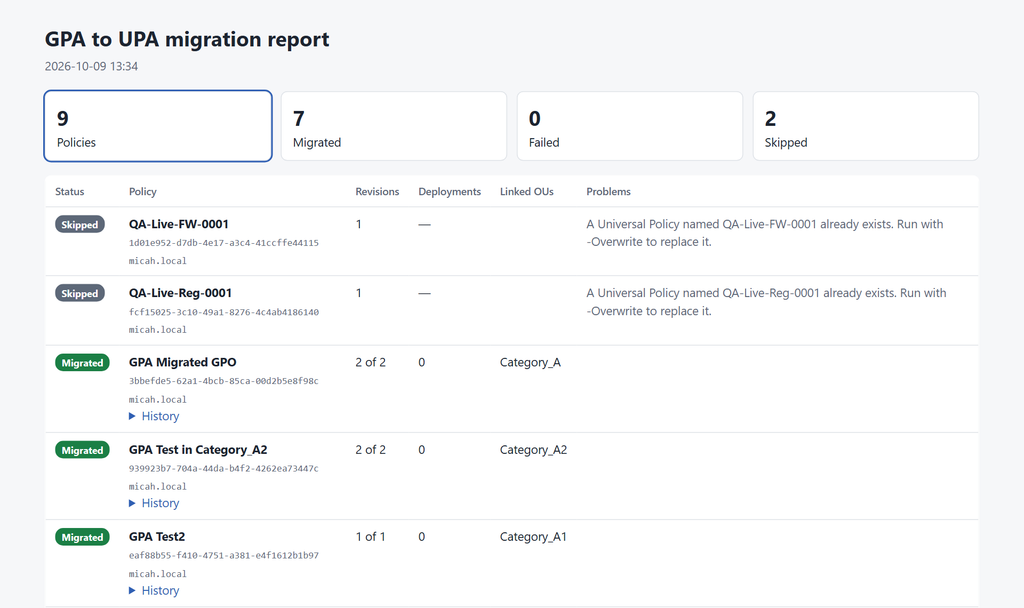
- The tiles at the top count the policies by result. Click one to show only those rows.
- Each row shows a GPO’s result, how many versions were migrated, the delegation OU it was placed in (the Linked OUs column shows the GPA category) and any problem. Open History to see each version’s date, person and comment.
| STATUS | MEANING | WHAT TO DO |
|---|---|---|
| Migrated | Every version and its history are in UPA | Check it in UPA (step 6) |
| Warning | Migrated, but something wasn’t completed, such as placing it in its category’s delegation OU | Read the Problems column; fix it in UPA if needed |
| Skipped | Not migrated: a Universal Policy with that name already exists, or the GPO contains settings the migration doesn’t support (printer connections, wired or wireless network policies, software installation packages) | Run again with -Overwrite, or recreate the unsupported settings in UPA |
| Failed | Not migrated; the reason is in the Problems column | Fix the cause and run again for that GPO, with -Overwrite if a partial policy was left |
| Dry run | Would be migrated (dry run only) | — |
Step 6: Check the result in UPA
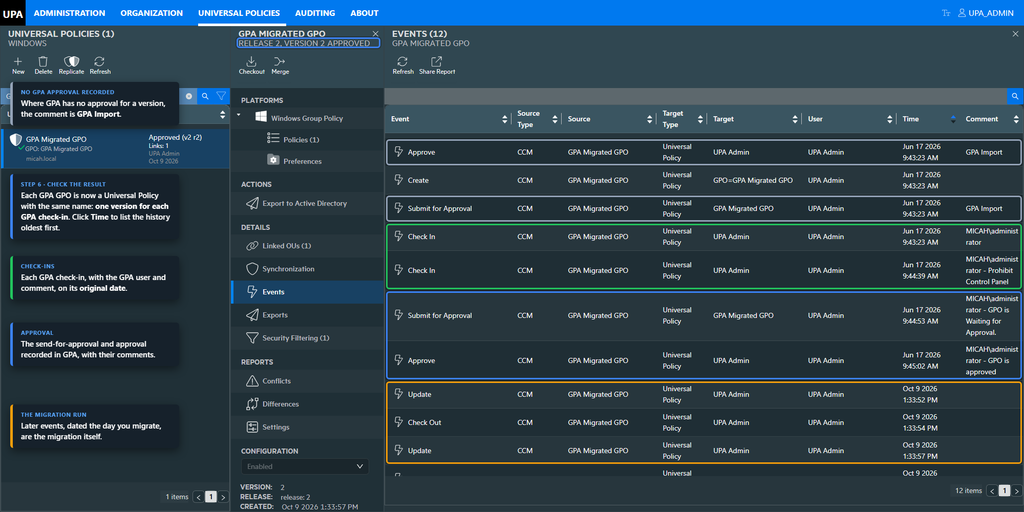
Universal Policies. Search for a migrated GPO’s name and select it. The header shows one version for each GPA check-in (here, Release 2, Version 2 for a GPO checked in twice), and Linked OUs shows its category’s delegation OU.
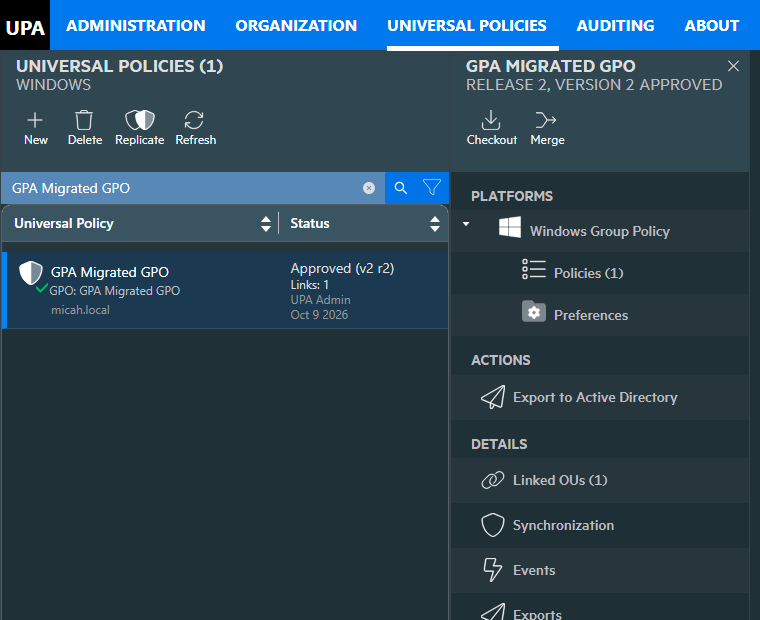
Select Events under DETAILS, then click the Time column to sort oldest first. You’ll see each version’s check-in, submit and approval, with the original GPA dates, people and comments. Where GPA recorded no approval, the comment is GPA Import.
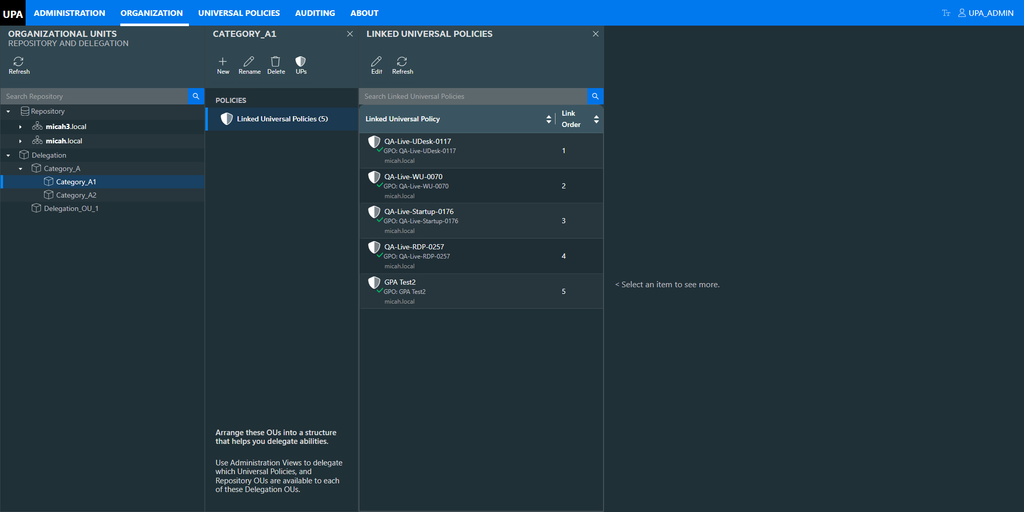
Organization › Delegation. There’s a delegation OU for each GPA category, nested as in GPA. Select one, then Linked Universal Policies, to see the GPOs migrated from that category.
Tips
- Start with a pilot. Use -TargetGPOs for a few GPOs, check them in UPA, then run the rest.
- Running it again is safe. GPOs that already have a Universal Policy are skipped unless you add -Overwrite.
- Keep the GPA database backup as the original record of history before the migration.
Quick reference
| TASK | Command (from the Snapin folder) |
|---|---|
| Dry run | .\Import-GPA-GPOs.ps1 -GPAConnectionString $gpa -SharePath <share> -UPAUrl <url> -Domain <domain> -DryRun |
| Pilot | … -Domain <domain> -Overwrite -TargetGPOs ‘<gpa id>’, ‘<gpa id>’ |
| Everything | … -Domain <domain> -Overwrite |
| Certificate error | add ;TrustServerCertificate=True to the connection string |