
Migrating from Microsoft AGPM to UPA
What the migration does
The migration moves every Group Policy Object that Microsoft Advanced Group Policy Management (AGPM) controls into UPA, together with its history. That history includes:
- every checked-in version;
- who changed and approved each version;
- when it was deployed.
For each controlled GPO:
| AGPM | BECOMES IN UPA |
|---|---|
| The GPO | One Universal Policy with the same name |
| Each checked-in version in the AGPM archive, oldest first | A version of that Universal Policy |
| Check-ins, deployment requests, approvals and deployments | UPA events, with the original AGPM dates, people and comments |
| The OU links recorded in AGPM | Links on the Universal Policy |
The migration only reads the AGPM archive. AGPM keeps working until you retire it.
The following video shows the migration from start to finish.
Before you start
| YOU NEED | DETAILS |
|---|---|
| UPA, with your domain imported | The domain that holds your AGPM-controlled GPOs must already be imported into UPA |
| The UPA PowerShell Tools on the AGPM server | Or on any machine that can read the AGPM archive. Group Policy Management (RSAT) must be installed there too |
| A UPA account | One that can create, approve and deploy Universal Policies. The script asks for it when it starts |
| A Windows account | Run PowerShell as an administrator who can read the AGPM archive and create and delete GPOs in the domain. The script restores each version to a temporary GPO, imports it into UPA, then deletes the temporary GPO |
| A backup of the AGPM archive | Copy the archive folder before you begin. The migration doesn’t change it, but the backup is your record of the original history |
Migrate before you edit in UPA. Importing your domain already created a Universal Policy for each GPO, without its AGPM history. The migration replaces it (see -Overwrite below), so any change you make to that Universal Policy in UPA first is lost.
Step 1: Find the AGPM archive
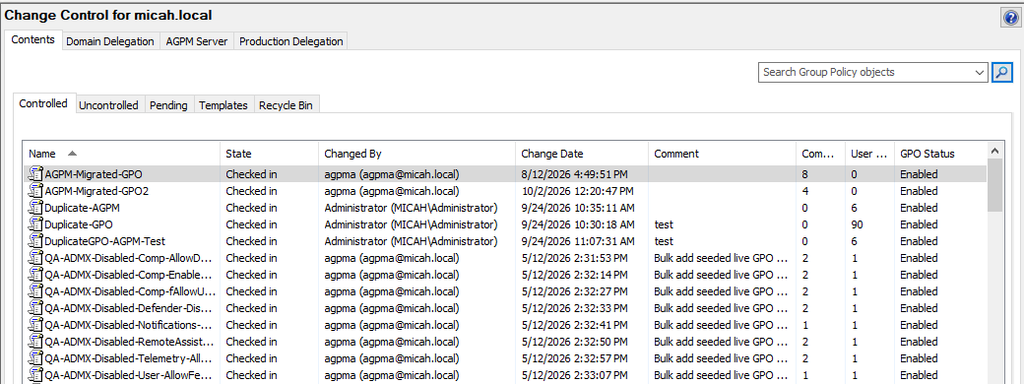
The GPOs that will be migrated are the ones listed in Group Policy Management › Change Control › Controlled:
The archive is a folder on the AGPM server. The default is C:\ProgramData\Microsoft\AGPM. It holds one subfolder per GPO version, plus gpostate.xml and manifest.xml:
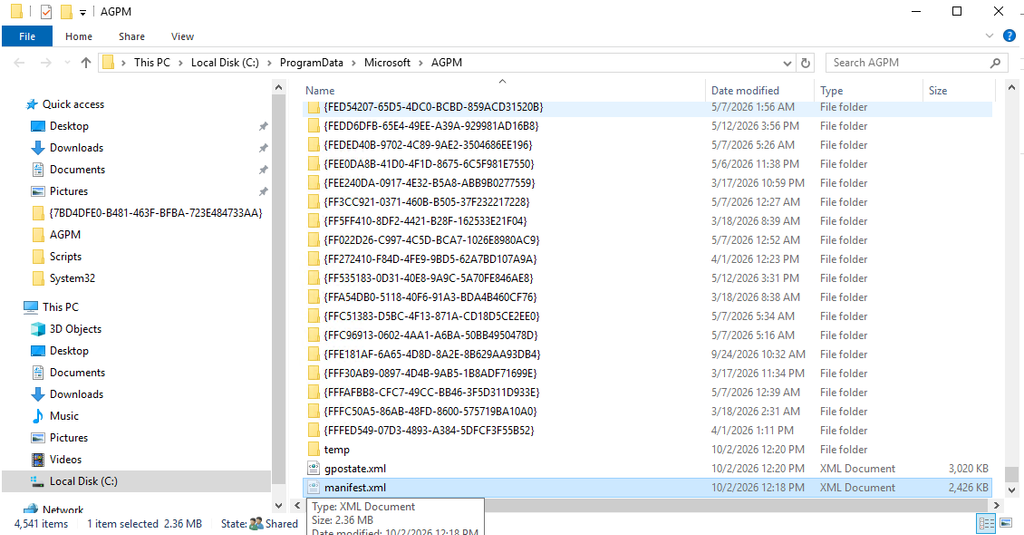
If AGPM was installed somewhere else, the path is in the registry on the AGPM server: HKLM\SOFTWARE\Microsoft\AGPM, value ArchivePath.
Step 2: Open PowerShell in the Snapin folder
Open Windows PowerShell as administrator, then go to the folder where the UPA PowerShell Tools installed the scripts:
cd "C:\Program Files\FullArmor\AD Bridge\Powershell Snapin"Run the script from this folder. It loads Migration-Shared.psm1 from the current folder, so starting it from anywhere else fails with “The specified module … Migration-Shared.psm1 was not loaded”. Use Windows PowerShell 5.1, not PowerShell 7.
Step 3: Do a dry run
A dry run lists what would be migrated and writes the migration report, without changing anything:
.\Import-AGPM-GPOs.ps1 -AGPMPath 'C:\ProgramData\Microsoft\AGPM' -UPAUrl 'https://upa.contoso.com' -Domain contoso.com -DryRunCheck the report (step 5) for the number of GPOs and versions, and for any GPO that already has a Universal Policy.
Step 4: Run the migration
Start with a few GPOs: pass their GUIDs to -TargetGPOs, check them in UPA, then run the rest.
# a pilot of two GPOs
.\Import-AGPM-GPOs.ps1 -AGPMPath 'C:\ProgramData\Microsoft\AGPM' -UPAUrl 'https://upa.contoso.com' -Domain contoso.com -Overwrite -TargetGPOs '{A8283C8A-D944-4461-B81A-970C658AE4F5}', '{EE36A005-DD02-4932-9F9D-6D4DC767B677}'

# everything
.\Import-AGPM-GPOs.ps1 -AGPMPath 'C:\ProgramData\Microsoft\AGPM' -UPAUrl 'https://upa.contoso.com' -Domain contoso.com -Overwrite
The script shows its progress and a line for each GPO, such as “Successfully migrated policy … “, and ends with the path of the migration report.
The script’s options
| OPTION | WHAT IT DOES |
|---|---|
| -AGPMPath | The AGPM archive folder. Required |
| -UPAUrl | The address of your UPA server. Required |
| -Domain | The domain whose GPOs to migrate. It must already be imported into UPA. Required except for a dry run |
| -DryRun | List what would be migrated, without changing anything |
| -Overwrite | Replace Universal Policies that already exist for these GPOs. Usually needed: see below |
| -TargetGPOs | Migrate only these GPOs, by GUID, for example a pilot group |
| -Credential | The UPA account. If you leave it out, the script asks for it |
| -SkipSSLVerification | Only if your UPA server uses a certificate this machine doesn’t trust |
| -ReportPath | Where to save the migration report. By default, AGPM-Migration-Report-<date>.html in the current folder |
| -NoReport | Don’t write a report |
Why you need -Overwrite
When your domain was imported, UPA created a Universal Policy for each GPO, without its AGPM history. Without -Overwrite the script skips each of those GPOs, and the report lists them as Skipped: “A Universal Policy named … already exists. Run with -Overwrite to replace it.”
- What -Overwrite does: replaces that Universal Policy with one built from AGPM: every version, the history and the OU links.
- What it removes: any change made to that Universal Policy in UPA before the migration. That’s why you migrate first, then edit in UPA.
Step 5: Review the migration report
The report is an HTML file. Open it in any browser.
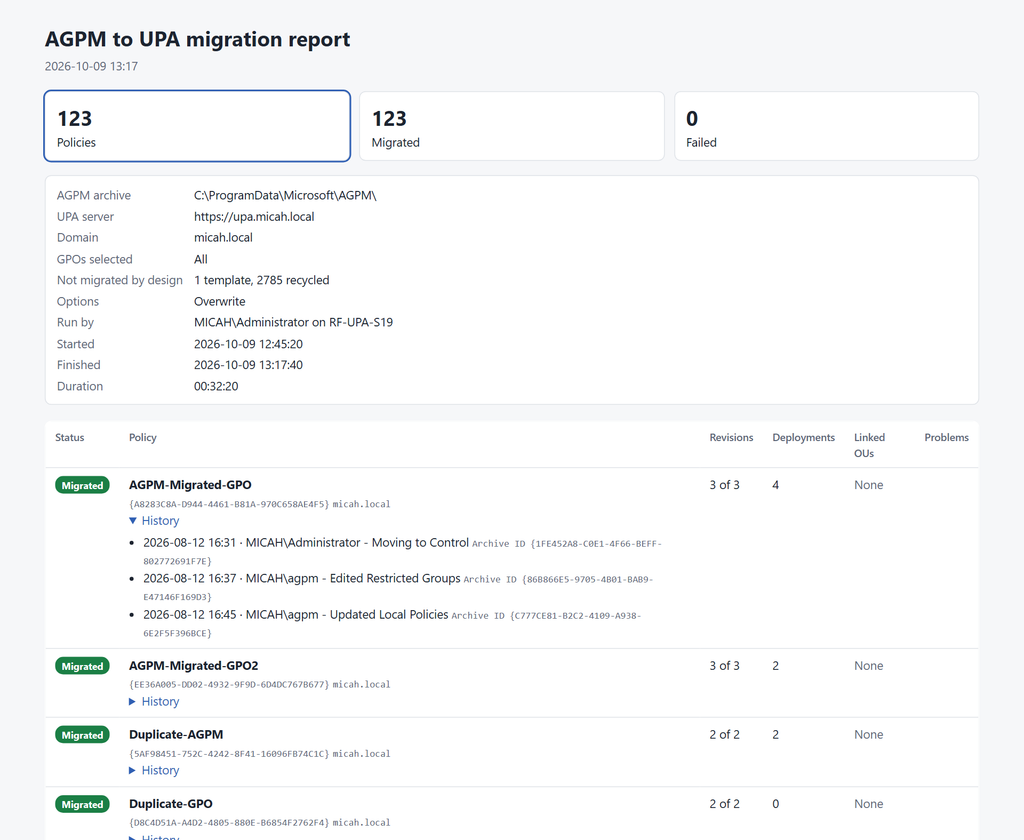
- The tiles at the top count the policies by result. Click one to show only those rows.
- The run details record the archive, server, domain, options, who ran it and how long it took. Not migrated by design counts the GPOs AGPM keeps but that are never migrated: deleted (recycle bin), templates, and pending creates.
- Each row shows a GPO’s result, how many versions were migrated, its deployments and OU links, and any problem. Open History to see each version’s date, person and comment.
| STATUS | MEANING | WHAT TO DO |
|---|---|---|
| Migrated | Every version and its history are in UPA | Check it in UPA (step 6) |
| Warning | Migrated, but something wasn’t recorded, such as one deployment event or an OU link | Read the Problems column; fix it in UPA if needed |
| Skipped | Not migrated. Usually a Universal Policy with that name already exists | Run again with -Overwrite for those GPOs |
| Failed | Not migrated; the reason is in the Problems column | Fix the cause and run again for that GPO, with -Overwrite if a partial policy was left |
| Dry run | Would be migrated (dry run only) | — |
Step 6: Check the result in UPA
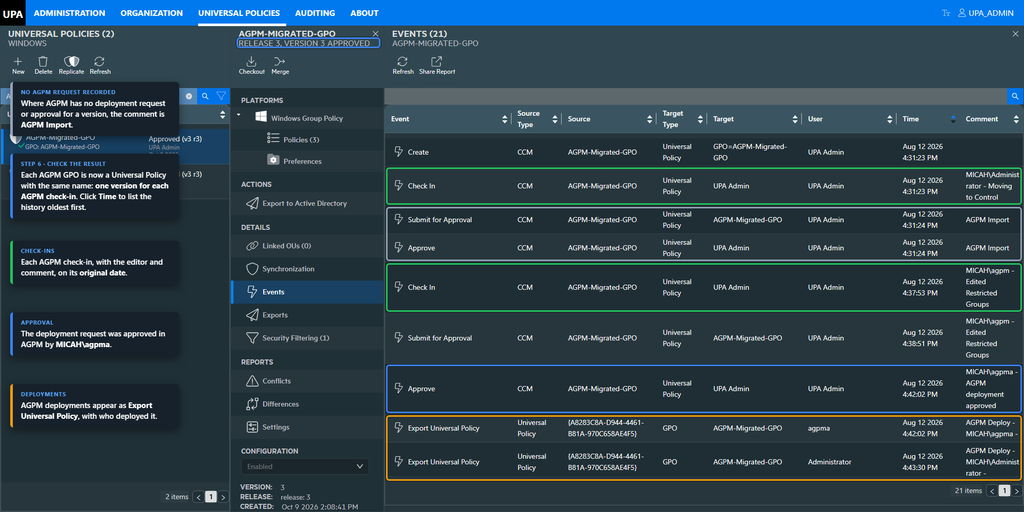
In the UPA console, open Universal Policies, search for a migrated GPO’s name and select it:
- Version: the header shows the version and release. There’s one version for each AGPM check-in; here, Release 3, Version 3 for a GPO with three check-ins.
- Events: select Events under DETAILS, then click the Time column to sort oldest first. You’ll see the check-ins, deployment requests, approvals and deployments, with their original AGPM dates, people and comments. AGPM deployments appear as Export Universal Policy.
- Linked OUs: the links recorded in AGPM (none for this GPO).
Tips
- Start with a pilot. Use -TargetGPOs for a few GPOs, check them in UPA, then run the rest.
- Allow time. Each AGPM version is imported separately. As a guide, 123 GPOs with their history took about 30 minutes; a large archive can take hours, so run it outside a change window.
- Running it again is safe. GPOs that already have a Universal Policy are skipped unless you add -Overwrite.
- Keep the AGPM archive backup as the original record of history before the migration.
Quick reference
| TASK | COMMAND (FROM THE SNAPIN FOLDER) |
|---|---|
| Dry run | .\Import-AGPM-GPOs.ps1 -AGPMPath <archive> -UPAUrl <url> -Domain <domain> -DryRun |
| Pilot | … -Domain <domain> -Overwrite -TargetGPOs ‘{guid}’, ‘{guid}’ |
| Everything | … -Domain <domain> -Overwrite |
| Report somewhere else | add -ReportPath C:\Reports\agpm.html |