
Finding and Resolving Duplicate and Conflicting Settings
Applies to: UPA 3.6.3 and higher
A Group Policy Object can contain the same setting more than once. UPA identifies these for you. When a policy contains more than one copy of a setting, UPA tells you, shows you where to look, and helps you clean up the policy before it goes back to Active Directory.
Duplicates and Conflicts
| WHAT IT IS | EXAMPLE | WHAT UPA DOES | |
|---|---|---|---|
| Duplicate | The same setting appears twice with the same value | Two registry items, both setting HKCU\Software\Contoso\V to 5 | Marks each copy with a ⚠ shield so that you can remove the extra copies |
| Conflict | The same setting appears twice with different values | One item sets V to 1 and another sets it to 2 | Marks the Universal Policy and keeps every copy so that you can choose which to keep |
Identifying Duplicate and Conflicting Settings
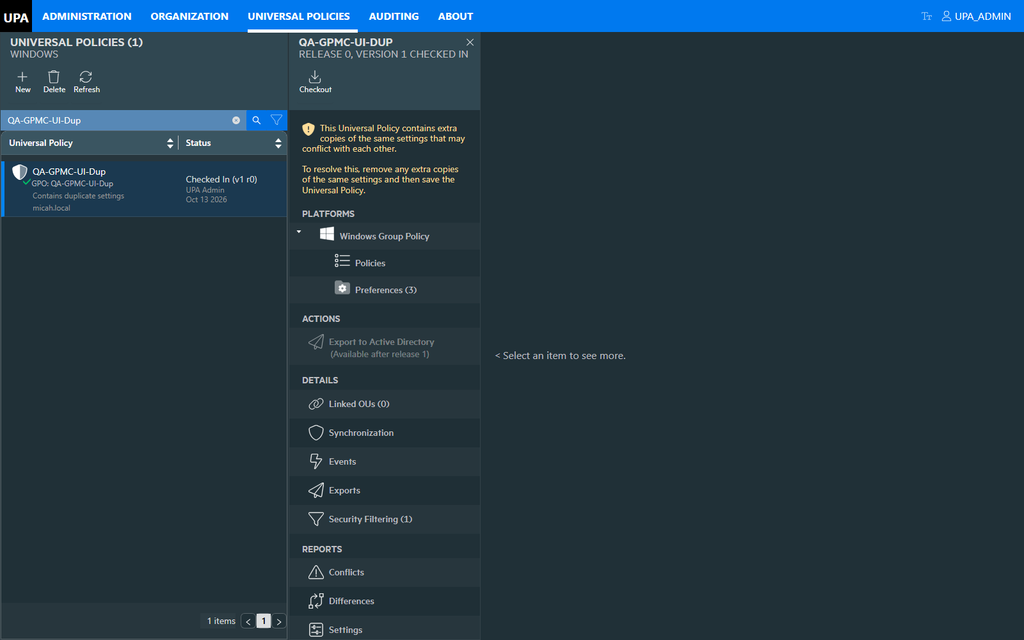
- Go to the Universal Policies tab. A Universal Policy with duplicate or conflicting settings shows Contains duplicate settings under its name.
- Select the Universal Policy. A notice at the top of the policy confirms it:
This Universal Policy contains extra copies of the same settings that may conflict with each other. To resolve this, remove any extra copies of the same settings and then save the Universal Policy.
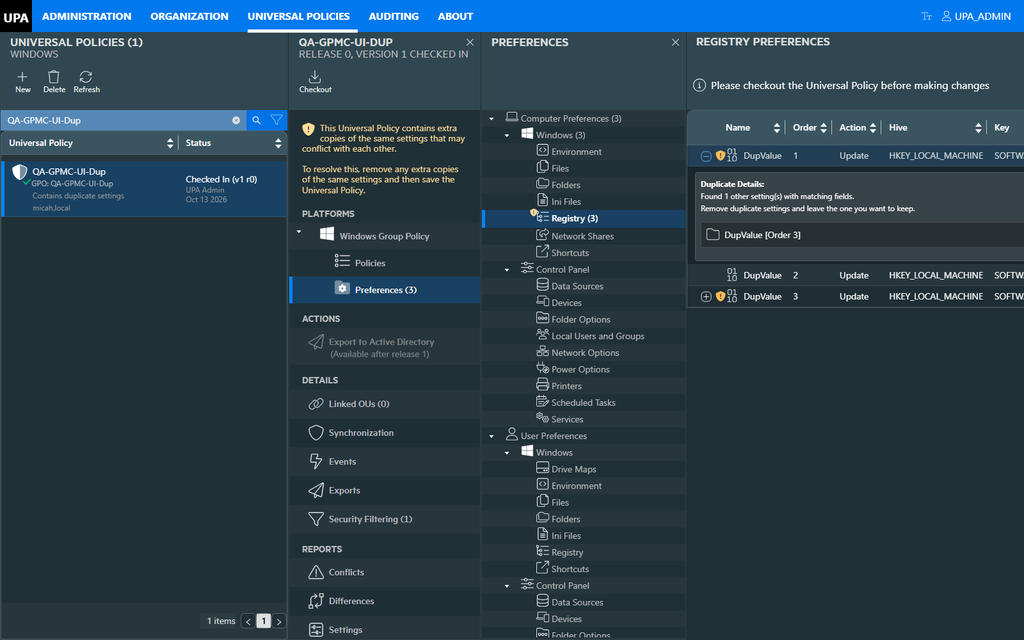
- Open the area that holds the settings, for example Preferences › User Preferences › Windows › Registry.
- Find the copies:
- Duplicates are marked with a ⚠ shield on each copy, and on the area that holds them. Click + on a marked row to see Duplicate Details, which names the other copy.
- Conflicts are not marked on the row. Compare the rows: for registry items, rows with the same Hive, Key and Value Name but different Value Data are the conflicting copies.
The Universal Policy can still be viewed and reported on while it is marked.
Resolving Duplicate and Conflicting Settings
- Select the Universal Policy and click Checkout.
- Open the area that holds the copies.
- Select the copy to remove, click Remove, and confirm. The Order column shows the order Windows applies the items in; the item with the highest order is applied last.

- Repeat until one copy of each setting is left.
- Click Save.
- Click Checkin.
Contains duplicate settings and the notice are removed from the Universal Policy.
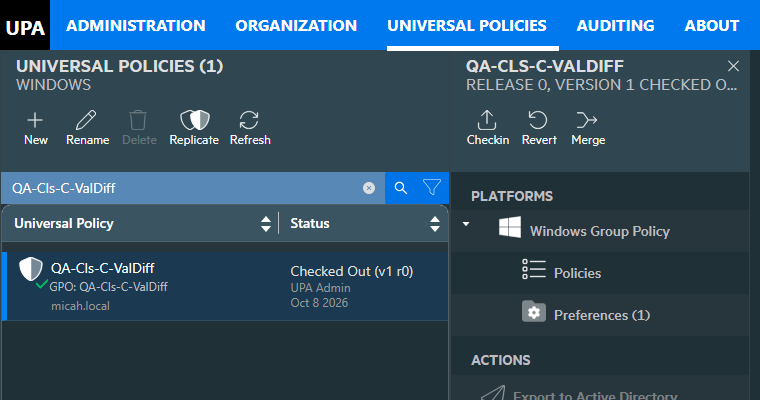
Duplicate Settings and the Conflict Analysis Report
| WHERE | WHAT IT COMPARES | |
|---|---|---|
| Contains duplicate settings | The Universal Policies tab and the notice in the policy | Copies of a setting inside one Universal Policy |
| Conflict Analysis Report | Conflicts in the Reports section of the policy | This Universal Policy against other Universal Policies |
GPOs with the Same Name
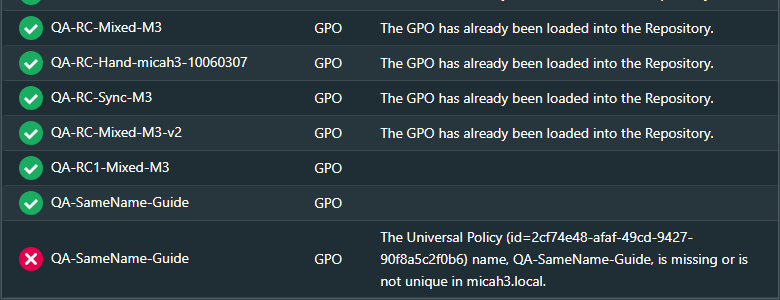
Two GPOs in one domain can have exactly the same name. A Universal Policy name must be unique in its domain, so UPA imports one of them and lists the others as errors in the import details. The import status is Finished with error.
To import the others:
- Go to the Organization tab and select the domain.
- Click Import History and select the import. A GPO that was not imported has a red ✖ and the message “… name, <name>, is missing or is not unique in <domain>.”
- In the Group Policy Management Console, give each of those GPOs a unique name.
- Click Reimport Domain. Each renamed GPO is imported as its own Universal Policy.