
Universal Policy Administrator Documentation
-
Introduction to Universal Policy Administrator
-
Installing Universal Policy Administrator
-
Setting up UPA Delegation
-
Working with Universal Policies
- Intro to Working with Universal Policies
- Creating Universal Policies
- Adding and Editing Policies
- Approving Universal Policies
- Exporting Universal Policies and Updating OU Links
- Finding and Resolving Duplicate and Conflicting Settings
- Merging Policies
- Rolling Back Policies
- Replicating Policies
- Synchronizing Policies (Gold Policy)
- Managing Security Filtering
- Working with ADMX Templates
-
Working with Domains and OUs
-
Migrating to UPA
-
Reporting on Universal Policies
-
UPA Configuration Settings
- Configuring SAML Authentication via Microsoft ENTRA ID
- Configuring UPA to use a Third-Party Identity Provider
- Configuring OIDC Authentication with OKTA
- Configuring OIDC Authentication with Microsoft Entra ID
- Configuring SAML authentication with Okta
- Configuring the Universal Policy Administrator Syslog Provider
-
Appendix
- Working with Citrix Policies
- Troubleshooting
- Domain Import – Skipping GPOs
- Adding an Additional Group with Read, Write, or Modify Security to a GPO
- Updating the UPA SSL Certificates
- UPA PowerShell Cmdlets
- Updating the License File
- UPA Disaster Recovery Guide
- Change UPA Logging Level
- Uninstalling UPA
- Release Notes
< All Topics
Print
Change UPA Logging Level
Change UPA Logging Level to Info (more verbose)
- On the machine where UPA is installed, go to:
C:\Program Files\FullArmor\AD Bridge\Gateway\WebApp - Open the Web.config file
- In the <appSettings> section, find:
<add key=”LoggingLevel” value=”Warning”/> - Change “Warning” to “Info” so it now looks like:
<add key=”LoggingLevel” value=”Info”/> - Save the web.config file
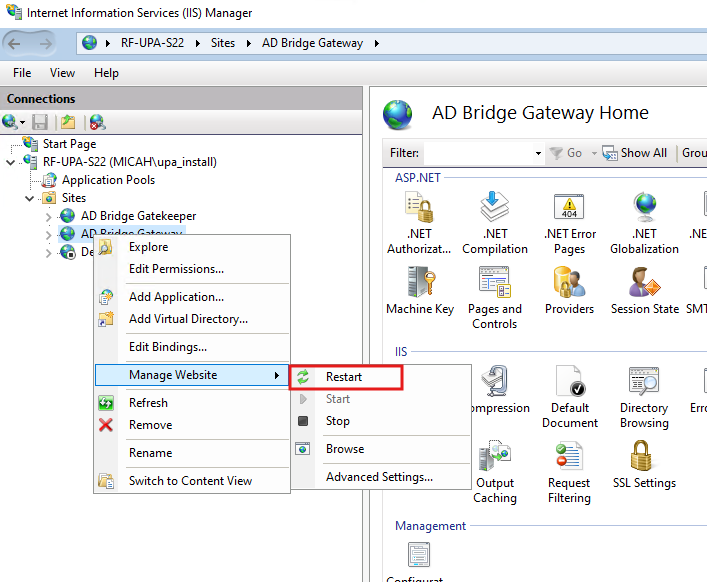
- After making the change, the UPA service in IIS needs to be restarted. It will be in IIS Sites, AD Bridge Gateway as shown below.
The log file is located at:
C:\ProgramData\FullArmor\AD Bridge\Logs\GatewayLog.txt
In This Article