
Universal Policy Administrator Documentation
Adding and Editing Policies
When the new policy is created (e.g., New_Policy), it will be Checked Out for the user who created it. The policy can now be edited by that user accordingly.
To modify a Universal Policy from the web console:
- Log in to the Web Console and navigate to the Universal Policies tab.
- Select a Universal Policy and click Checkout (if not checked out already).
- Under the Windows Group Policy, select either Policies or Preferences.
- (Optional) If you want to add an Administrative Template, select Administrative Templates and then +New.
- Find and edit the settings.
- Click Save.
- Select to Checkin the policy.
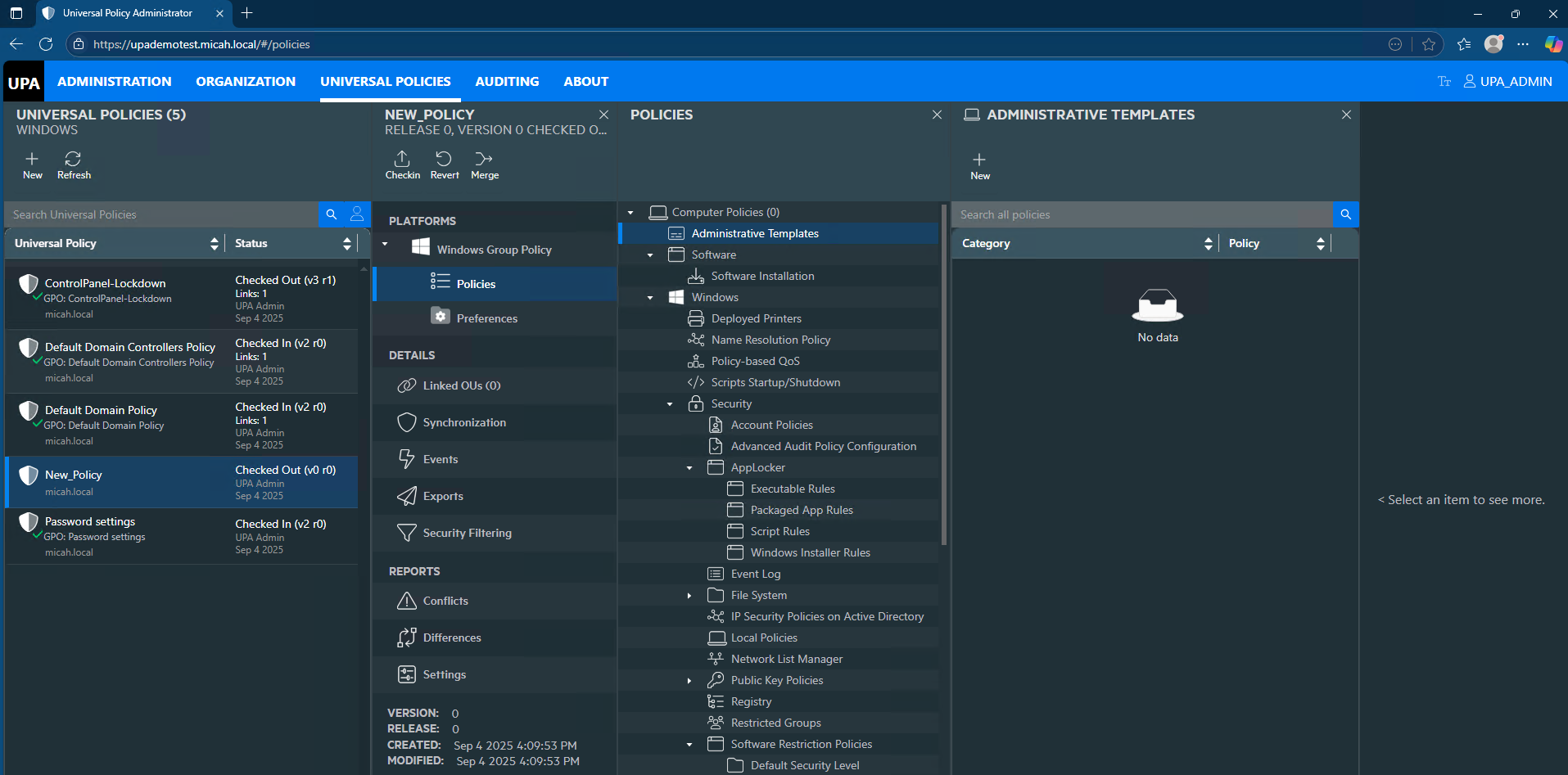
Please note: If you checked out a UP and did not make any changes, click Revert to undo the checkout.
Please see the video below showing the process of adding and editing both an imported GPO as well as a new Universal Policy.