
Universal Policy Administrator Documentation
Differences Report
Using Universal Policy Administrator, you can view the Universal Policy Differences report between the current version of a specific universal policy and the last checked-in version, the last approved version, any two versions, and the version present in the GPO in AD.
To View Universal Policy Differences Report in the web console:
- Navigate to the Universal Policies tab.
- Select a Universal Policy.
- Click Differences in the Reports section.
- View (and Search) the conflicts (if any exist)
- Click Share Report to print or save the list of conflicts events to a pdf.
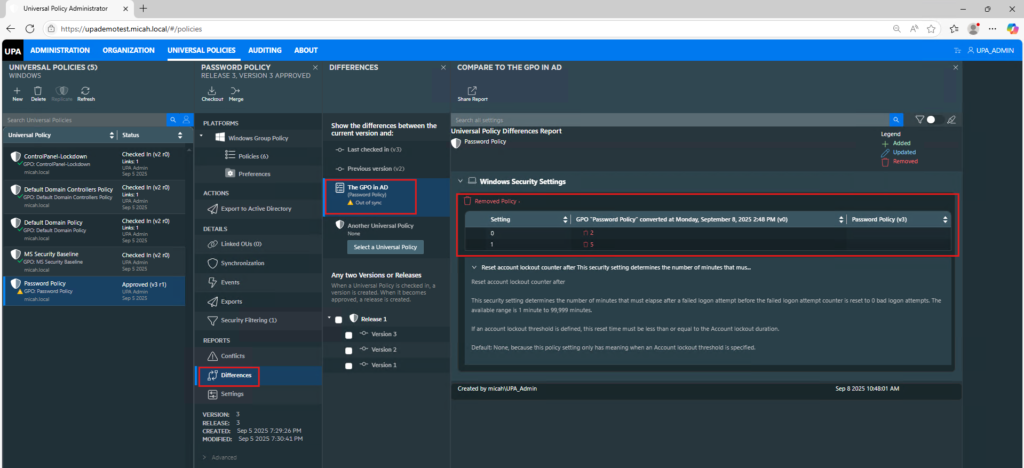
To Search Specific Settings in the Universal Policy Differences Report in the web console:
- Navigate to the Universal Policies tab.
- Select a Universal Policy.
- Click Differences in the Reports section.
- Click on the search bar to activate it.
- Type in the keyword or setting name you are looking for.
- Press Enter or click on the search icon to initiate the search.
- Review the search result to find the relevant setting (The keywords are highlighted).
To Share Universal Policy Differences Report in the Web Console:
- Navigate to the Universal Policies tab.
- Select a Universal Policy.
- Click Differences in the Reports section.
- In the Comparing Changes tab, click on the Share Report icon, a print dialog box will appear.
- Choose Save as PDF or select the PDF printer option from the list of available printers.
- Click the Print or Save button. A new dialog box will prompt you to choose the destination where you want to save the PDF file.
- Select the desired location on your device and enter a file name for the PDF.
- Click Save to generate the report as a PDF file.