
UPA PowerShell Cmdlets
The UPA PowerShell cmdlets can be used to perform many Universal Policy tasks to automate your processes. You can obtain the UPA PowerShell installer from your Full Armor contact.
Note: Please let us know if there are other PowerShell script examples that we can provide to help in your automation processes.
Importing The PowerShell Snap-In
After installing the PowerShell cmdlets, open a PowerShell prompt as an administrator and run the following:
Import-Module "C:\Program Files\FullArmor\AD Bridge\Powershell Snapin\HAPI.ProviderPowershellSnapin.dll"To view the list of supported cmdlets, run this command:
get-command -module HAPI.ProviderPowershellSnapinTo help you get started, below are a few examples of tasks that you can execute with the PowerShell cmdlets.
1. Setup the UPA credentials and list the Universal Policies
Change the username, password, and URL for your environment accordingly.
Import-Module "C:\Program Files\FullArmor\AD Bridge\Powershell Snapin\HAPI.ProviderPowershellSnapin.dll"
$username = “adminuser@yourdomain.local”
$password = ConvertTo-SecureString "Password" -AsPlainText -Force
$cred     = New-Object System.Management.Automation.PSCredential ($username, $password) # Establish connection
$cred | Get-HAPIConnection -Url “https://yourUPAsite.com/”

# Retrieve policies
Get-UniversalPolicy |
    Select-Object Name, GlobalPolicyId, LastModified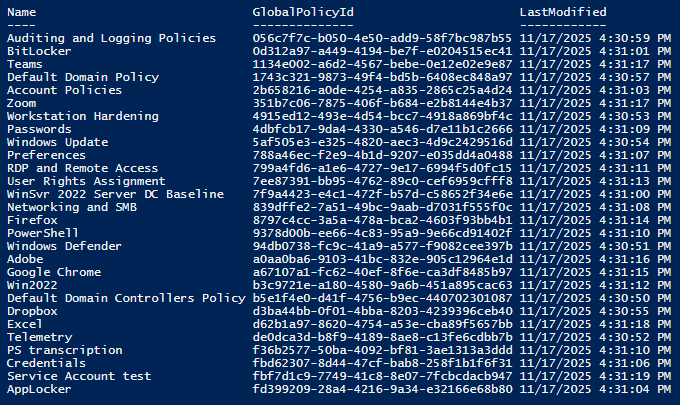
2. Get the details on a Universal Policy
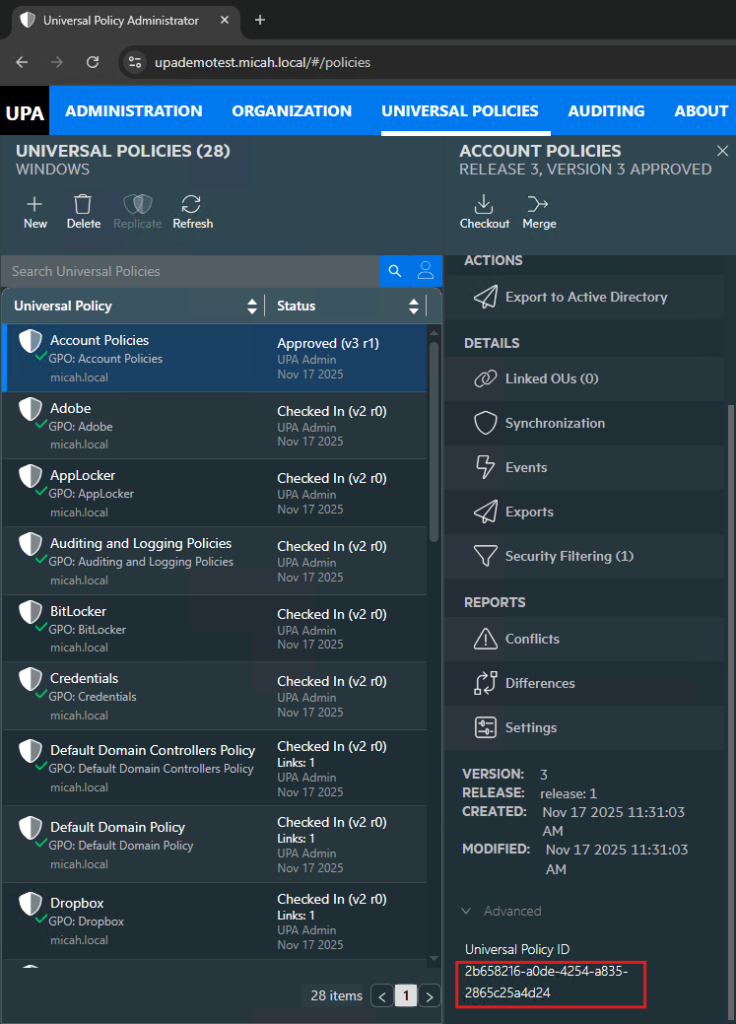
Replace the UPId with a GlobalPolicyId that was generated in step 1 above. Alternatively, you can find the Universal Policy ID (UPId) in the UPA console in the Advanced section (see screenshot below).
Change the username, password, URL, and UPId for your environment accordingly.
Import-Module "C:\Program Files\FullArmor\AD Bridge\Powershell Snapin\HAPI.ProviderPowershellSnapin.dll"
$username = “adminuser@yourdomain.local”
$password = ConvertTo-SecureString "Password" -AsPlainText -Force
$cred     = New-Object System.Management.Automation.PSCredential ($username, $password) # Establish connection
$cred | Get-HAPIConnection -Url “https://yourUPAsite.com/”

# Get the Universal Policy Details
Get-UniversalPolicy -AllDetails -UPId "320ecf83-dbdc-46a5-942a-b6cc932a8a45"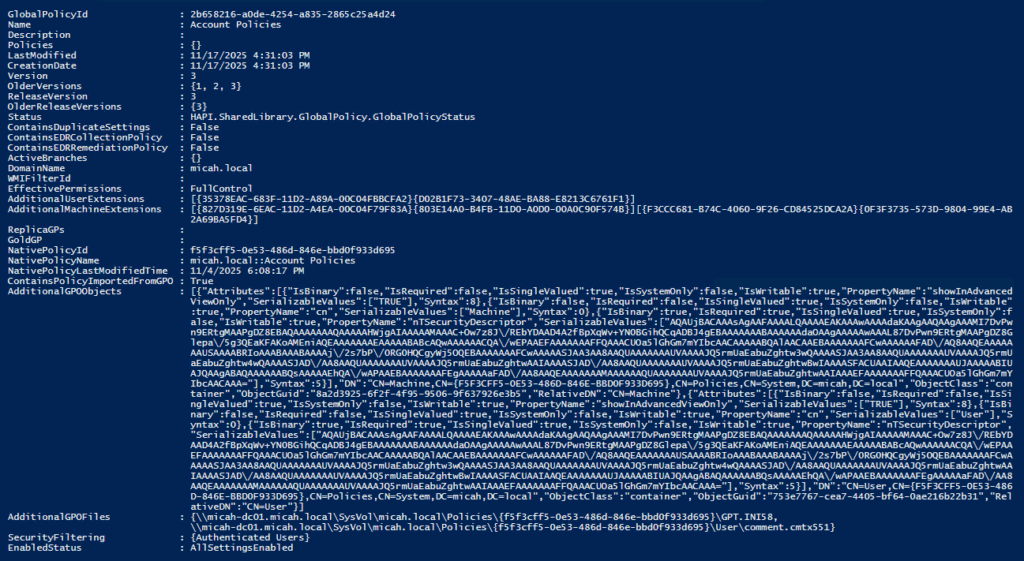
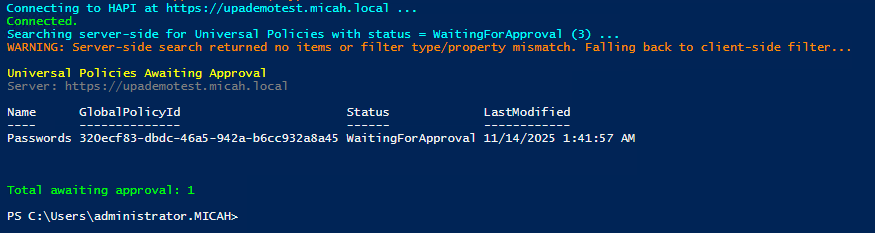
3. List the Universal Policies that are Awaiting Approval.
Note: This script will list Universal Policies that have been Submitted for Approval but not Approved yet.
<#
Find Universal Policies that are "WaitingForApproval" (status = 3) and print them onscreen.
- Connects via Get-HAPIConnection (credential pipeline)
- Tries server-side Find-UniversalPolicy with WireFilterCriteria
- Falls back to client-side Get-UniversalPolicy -AllDetails if needed
#>
[CmdletBinding()]
param(
    [Parameter(Mandatory=$true)]
    [ValidatePattern('^https?://')]
    [string]$Server,
    [System.Management.Automation.PSCredential]$Credential,
    [string]$BranchName = 'master'
)
# -------- Setup --------
$ModuleName = 'HAPI.ProviderPowershellSnapin'
$StatusMap = @{
    1 = 'CheckedOut'
    2 = 'CheckedIn'
    3 = 'WaitingForApproval'
    4 = 'Approved'
    5 = 'Unapproved'
}
function Write-Info { param([string]$m) Write-Host $m -ForegroundColor Cyan }
function Write-OK   { param([string]$m) Write-Host $m -ForegroundColor Green }
function Write-Warn { param([string]$m) Write-Warning $m }
Import-Module $ModuleName -Force
if (-not $Credential) {
    $Credential = Get-Credential -Message "Enter HAPI credentials (UPN or DOMAIN\User)"
}
Write-Info "Connecting to HAPI at $Server ..."
try {
    $Credential | Get-HAPIConnection -Url $Server | Out-Null
    Write-OK "Connected."
} catch {
    throw "Failed to connect to HAPI at $Server. $($_.Exception.Message)"
} # -------- Build server-side filter safely --------
Write-Info "Searching server-side for Universal Policies with status = WaitingForApproval (3) ..."
# Candidate field names for status
$candidateFields = @('Status.CurrentStatus','CurrentStatus','StatusId') # Load the filter type from the assembly that Get-Help referenced
$critTypeName = 'HAPI.SharedLibrary.WireFilterCriteria'
try {
    $critType = [Type]::GetType($critTypeName, $false)
    if (-not $critType) {
        # Try resolving by scanning loaded assemblies
        $critType = [AppDomain]::CurrentDomain.GetAssemblies() |
            ForEach-Object { $_.GetType($critTypeName, $false) } |
            Where-Object { $_ } | Select-Object -First 1
    }
} catch { $critType = $null }
$results = $null
$serverSideWorked = $false
if ($critType) {
    foreach ($field in $candidateFields) {
        try {
            $crit = [Activator]::CreateInstance($critType)
            # Set Field
            $crit.GetType().GetProperty('Field').SetValue($crit, $field, $null)
# Find an operator-like property and set it to "Equals"
            $props = $crit.GetType().GetProperties()
            $opProp = $props | Where-Object { $_.Name -in @('Operator','Comparison','Comparator','Op') } | Select-Object -First 1
            if ($opProp) {
                $pt = $opProp.PropertyType
                if ($pt.IsEnum) {
# Try to use the 'Equals' enum member; if not present, pick the first enum member
                    $names = [Enum]::GetNames($pt)
                    $name  = ($names | Where-Object { $_ -ieq 'Equals' } | Select-Object -First 1)
                    if (-not $name) { $name = $names | Select-Object -First 1 }
                    $val = [Enum]::Parse($pt, $name)
                    $opProp.SetValue($crit, $val, $null)
                } elseif ($pt -eq [string]) {
                    $opProp.SetValue($crit, 'Equals', $null)
                } else {
                    # As a last resort for numeric operator types
                    $opProp.SetValue($crit, 0, $null)
                }
            }
            # Set Value (status code 3 = WaitingForApproval)
            $valProp = $props | Where-Object { $_.Name -eq 'Value' } | Select-Object -First 1
            if ($valProp) {
                # Coerce to the property's type if needed
                $targetType = $valProp.PropertyType
                $valueToSet = if ($targetType -eq [string]) { '3' } else { 3 }
                $valProp.SetValue($crit, $valueToSet, $null)
            }
# Call Find-UniversalPolicy using this single-criteria array
            $cand = Find-UniversalPolicy -Filters @($crit)
            if ($cand) {
                $results = $cand
                $serverSideWorked = $true
                Write-OK "Server-side filter succeeded using field '$field'."
                break
            }
        } catch {
            # Try next field / ignore and continue
        }
    }
} else {
    Write-Warn "Could not resolve type $critTypeName. Skipping server-side filter."
}
# -------- Fallback to client-side if needed --------
if (-not $results) {
    if (-not $serverSideWorked) {
        Write-Warn "Server-side search returned no items or filter type/property mismatch. Falling back to client-side filter..."
    }
    $allUPs = Get-UniversalPolicy -AllDetails -BranchName $BranchName
    $results = $allUPs | Where-Object { $_.Status -and $_.Status.CurrentStatus -eq 3 }
}
# -------- Print results --------
if (-not $results -or @($results).Count -eq 0) {
    Write-Warn "No Universal Policies found with status WaitingForApproval (3)."
    return
}
Write-Host ""
Write-Host "Universal Policies Awaiting Approval" -ForegroundColor Yellow
Write-Host "Server: $Server" -ForegroundColor DarkGray
$results |
    Select-Object `
        @{n='Name';e={$_.Name}}, `
        @{n='GlobalPolicyId';e={$_.GlobalPolicyId}}, `
        @{n='Status';e={
            $code = [int]$_.Status.CurrentStatus
            if ($StatusMap.ContainsKey($code)) { $StatusMap[$code] } else { $code }
        }}, `
        @{n='LastModified';e={$_.LastModified}} |
    Sort-Object Name |
    Format-Table -AutoSize
Write-Host ""
Write-OK ("Total awaiting approval: " + (@($results).Count))
4. Monitor the health of UPA
This PowerShell script checks the health and responsiveness of the UPA services (Gateway and Gatekeeper) by testing connectivity, measuring latency, and classifying each service as Good, Slow, or Bad.
The output will show the following:
- Good (≤400 ms): Service is healthy; no action required.
- Slow (401–2000 ms): Performance degradation is likely; review system resources (CPU, memory, disk, IIS worker process load) and monitor for growing latency trends.
- Bad (>2000 ms or no response): Immediate action recommended—inspect server performance, check for IIS application pool issues, validate network connectivity, and restart the Gateway and Gatekeeper sites in IIS if resource usage appears normal.
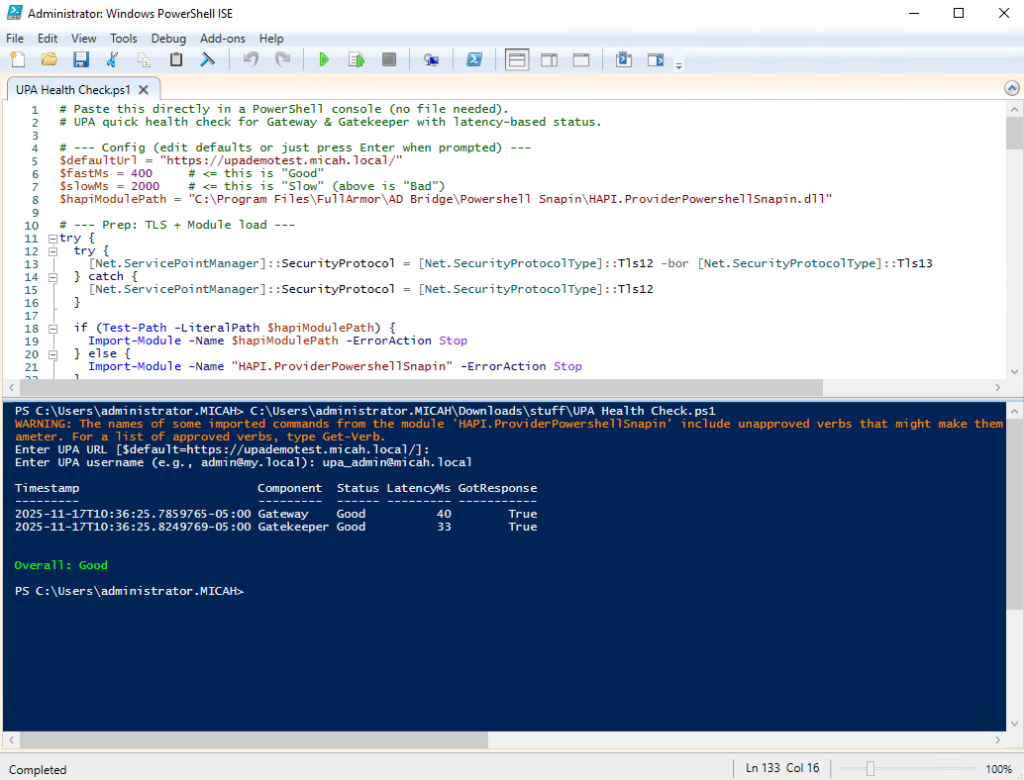
# UPA quick health check for Gateway & Gatekeeper with latency-based status.

# --- Config (edit defaults or just press Enter when prompted) ---
$defaultUrl = "https://upademotest.micah.local/"
$fastMs = 400     # <= this is "Good"
$slowMs = 2000    # <= this is "Slow" (above is "Bad")
$hapiModulePath = "C:\Program Files\FullArmor\AD Bridge\Powershell Snapin\HAPI.ProviderPowershellSnapin.dll"
# --- Prep: TLS + Module load ---
try {
  try {
    [Net.ServicePointManager]::SecurityProtocol = [Net.SecurityProtocolType]::Tls12 -bor [Net.SecurityProtocolType]::Tls13
} catch {
   [Net.ServicePointManager]::SecurityProtocol = [Net.SecurityProtocolType]::Tls12
  }
  if (Test-Path -LiteralPath $hapiModulePath) {
    Import-Module -Name $hapiModulePath -ErrorAction Stop
  } else {
    Import-Module -Name "HAPI.ProviderPowershellSnapin" -ErrorAction Stop
  }
} catch {
  Write-Host "ERROR: Failed to import HAPI module/snap-in: $($_.Exception.Message)" -ForegroundColor Red
  return
}
# --- Input prompts (with defaults) ---
$inpUrl = Read-Host "Enter UPA URL [`$default=$defaultUrl`]"
if ([string]::IsNullOrWhiteSpace($inpUrl)) { $inpUrl = $defaultUrl }
$inpUser = Read-Host "Enter UPA username (e.g., admin@my.local)"
if ([string]::IsNullOrWhiteSpace($inpUser)) {
  Write-Host "ERROR: Username is required." -ForegroundColor Red
  return
}
$cred = Get-Credential -UserName $inpUser -Message "Enter UPA password"
# --- Helpers ---
function Classify-UPAStatus {
param(
  [bool]$GotResponse,
  [int]$LatencyMs,
  [int]$FastThresholdMs,
  [int]$SlowThresholdMs
)
if (-not $GotResponse) { return 'Bad' }
if ($LatencyMs -le $FastThresholdMs) { return 'Good' }
if ($LatencyMs -le $SlowThresholdMs) { return 'Slow' }
return 'Bad'
}
function Invoke-UPAHealth {
param(
  [string]$Name,
  [scriptblock]$Cmd,
  [string]$Url,
  [int]$FastThresholdMs,
  [int]$SlowThresholdMs
)
$lat = 0; $ok = $false; $msg = ""
try {
$sw = [System.Diagnostics.Stopwatch]::StartNew()
$r = & $Cmd
$sw.Stop()
$lat = [int][Math]::Round($sw.Elapsed.TotalMilliseconds)
}
switch ($r) {
  $true  { $ok = $true;  $msg = "Health check returned success." }
  $false { $ok = $false; $msg = "Health check returned failure." }
  default {
    $ok = $null -ne $r
    $msg = "Health check returned: {0}" -f (($r | Out-String).Trim())
  }
}
} catch {
$ok = $false
$msg = "Exception: {0}" -f $_.Exception.Message
}
  $status = Classify-UPAStatus -GotResponse:$ok -LatencyMs:$lat -FastThresholdMs:$FastThresholdMs -SlowThresholdMs:$SlowThresholdMs
[PSCustomObject]@{
Timestamp = (Get-Date).ToString("o")
Component = $Name
Url = $Url
GotResponse = $ok
LatencyMs = $lat
Status = $status
Message = $msg
}
}
--- Connect (PIPE the credential; do NOT use -Credential) ---
try {
$null = $cred | Get-HAPIConnection -Url $inpUrl -ErrorAction Stop
} catch {
[PSCustomObject]@{
Timestamp = (Get-Date).ToString("o")
Component = 'Connection'
Url = $inpUrl
GotResponse = $false
LatencyMs = 0
Status = 'Bad'
Message = "Connection error: $($_.Exception.Message)"
}
return
}
--- Run checks ---
$results = @()
$results += Invoke-UPAHealth -Name 'Gateway' -Url $inpUrl -FastThresholdMs $fastMs -SlowThresholdMs $slowMs -Cmd { Test-GatewayHealth -Url $inpUrl -ErrorAction Stop } $results += Invoke-UPAHealth -Name 'Gatekeeper' -Url $inpUrl -FastThresholdMs $fastMs -SlowThresholdMs $slowMs
-Cmd { Test-GatekeeperHealth -Url $inpUrl -ErrorAction Stop }
# --- Output table ---
$results | Format-Table Timestamp, Component, Status, LatencyMs, GotResponse -AutoSize
# --- Overall & recommendations ---
$overall =
 if (($results | Where-Object Status -eq 'Bad'))  { 'Bad' }
 elseif (($results | Where-Object Status -eq 'Slow')) { 'Slow' }
   else { 'Good' }
$color = switch ($overall) {
  'Good' { 'Green' }
  'Slow' { 'Yellow' }
  default { 'Red' }
 }
Write-Host ("Overall: {0}" -f $overall) -ForegroundColor $color
if ($overall -eq 'Bad' -or $overall -eq 'Slow') {
Write-Host ""
  Write-Host "Recommendation:" -ForegroundColor Cyan
  Write-Host "You should check machine resource use (memory usage, disk usage, etc.)." -ForegroundColor White
  Write-Host "Then restart the Gateway and Gatekeeper sites in IIS." -ForegroundColor White
}
# Expose results for further scripting:
$global:UPAHealthResults = $results