
Domain Import – Skipping GPOs
Excluding Specific GPOs
If you need to exclude specific GPOs from being imported into UPA, you can define a regular expression to filter them out.
- On the machine where UPA is installed, go to:
C:\Program Files\FullArmor\AD Bridge\Gateway\WebApp - Open the Web.config file
- In the <appSettings> section, add the following key:
<add key=”GPONameSkipPattern” value=”^ZZZ.*”/> - Save the file
This regular expression skips all GPOs whose names begin with “ZZZ”.
To skip multiple prefixes, use the pipe (|) operator. For example, to skip GPOs starting with “ZZZ” or “ABC”:
<add key=”GPONameSkipPattern” value=”^(ZZZ|ABC).*” />
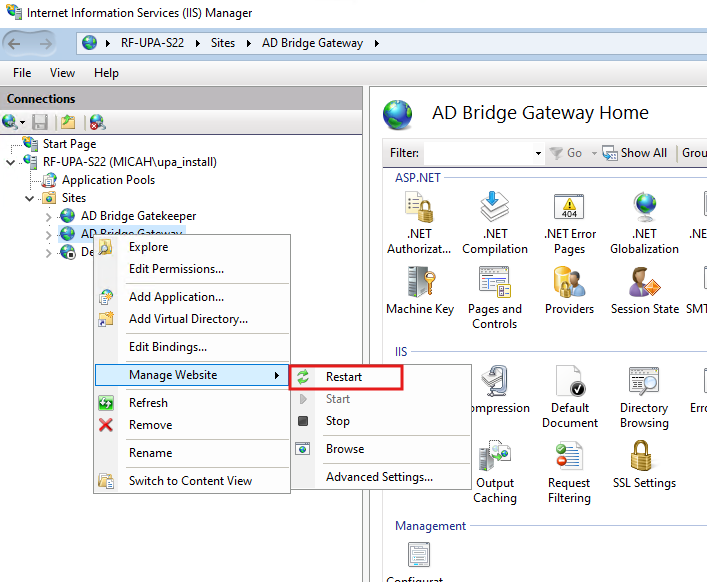
- After making the change, the UPA service in IIS needs to be restarted. It will be in IIS Sites, AD Bridge Gateway as shown below.
To see what has been imported, go to the Organization tab, select on the domain, and then Import History.
To look at the log files to confirm what has been skipped:
To see what has been excluded, you need to change the UPA logging to ‘Info’ (see Changing Logging Level doc) and then see the logs in:
C:\ProgramData\FullArmor\AD Bridge\Logs\GatewayLog.txt and search for ‘skipping’.
Removing Universal Policies (UPs)
Please Note: If you have already done a domain import and would like to remove certain UPs from UPA, run the PowerShell script below.
Edit the URL and regex in the PowerShell script below as appropriate for your environment.
Add-PSSnapin UPA.Management

#prompt for username/password
$cred = Get-Credential

$cred | Get-HAPIConnection -url "https://upademotest.micah.local"

$deleteRegEx = "^[Zz].*"

$allUPs = Get-UniversalPolicy
$count = 0
foreach ($up in $allUPs)
{
    if ($up.Name -match $deleteRegEx)
    {
        Write-Output "Removing $($up.Name)"
        $count++
        $up | Remove-UniversalPolicy -Force
    }
}
Write-Output "$($count) UPs removed"
After running the script, follow the instructions above to edit Web.config file with the GPOs you want to skip, restart the Gateway, and then you can re-import the domain from the Organization tab.