
Universal Policy Administrator Documentation
Synchronizing Policies (Gold Policy)
You can create a Gold Universal Policy that serves as a template for other policies for those settings that you want to enforce across your enterprise.
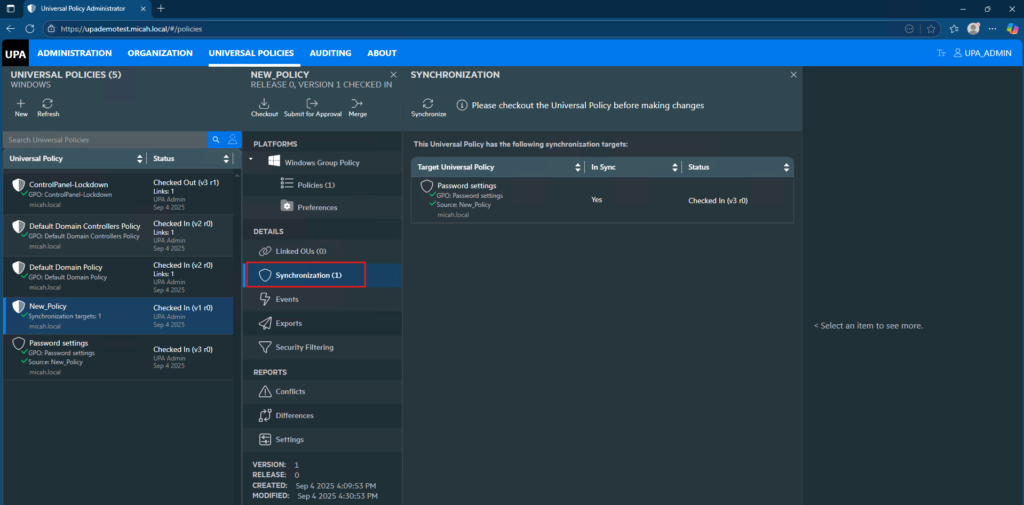
To Synchronize a Universal Policy to other policies:
- Log in to the Web Console as an Administrator.
- Navigate to the Universal Policies tab.
- Select a Universal Policy that you want to be the Gold Universal Policy.
- On the policy tab, navigate to the Details menu.
- Click Synchronization.
- In the Synchronization tab, click Include.
- Select the Universal Policy to inherit the settings of the Gold Universal Policy.
- Click Include.
- Click Save.
- In the Synchronization tab, select the Universal Policy and click Synchronize > Synchronize.
- You can view the synchronized policies of the Gold Universal Policy in the synchronization tab.
- If you want to remove a policy from being synchronized, select on the policy in the Synchronization tab and click Exclude.
- The Gold Universal Policy must be checked in to perform Synchronization.
- If the policy settings of the Gold Universal Policy is modified and synchronization is
not processed for the inherited universal policies, the status of the inherited universal policies will be ‘not synced’. - The policy settings of a universal policy is overwritten by the policy settings of the Gold Universal Policy when it is synchronized with the Gold Universal Policy.
Note: If either the Source or the Target UP is changed, then the In Sync column will change to ‘No’. You can then click to Synchronize them again.