
Agent-to-Agent (A2A) Tunnels
Applies to SSHepherd 2.0
Overview
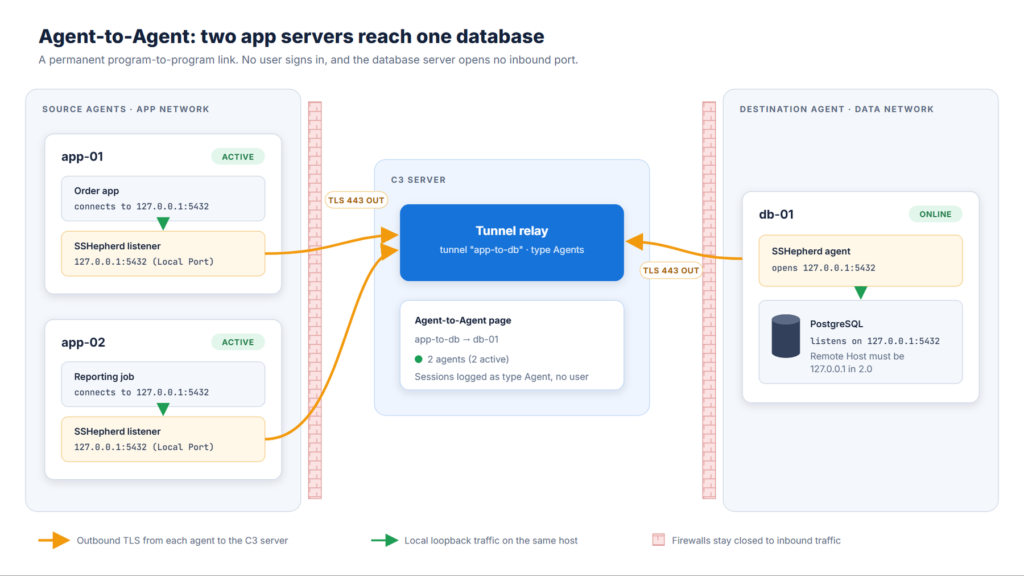
An Agent-to-Agent (A2A) tunnel is a permanent link from one or more source agents to a service on a destination agent. No user is involved. For example, application servers can reach a database server through SSHepherd®, with the database port closed to the network.
How it works:
- Each source agent opens a listener on its own
127.0.0.1at the tunnel’s Local Port. - Applications on the source host connect to
127.0.0.1:<local port>. - SSHepherd® relays each connection through the C3 server to the destination agent, which connects it to the service at Remote Host and Remote Port.
- The listeners start automatically and stay up. If an agent or the C3 server restarts, the link recovers on its own.
Windows and Linux agents can be sources and destinations.
Create an A2A tunnel
You need permission to create tunnel definitions.
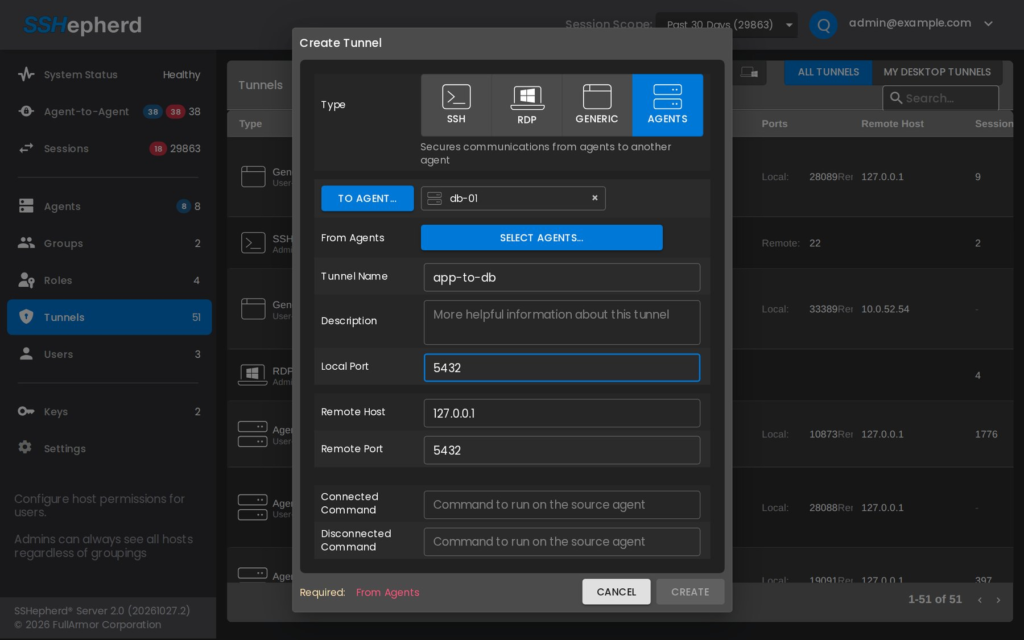
- In the Administrator Console, click Tunnels.
- Click +, then click Agents.
- Fill in the fields: Field Description To Agent The destination agent, where the service runs. From Agents One or more source agents. Don’t include the destination agent itself. Tunnel Name and Description How the tunnel appears on the Tunnels and Agent-to-Agent pages. Local Port The port each source agent listens on, on
127.0.0.1. Choose a port that’s free on every source host. Remote Host Enter127.0.0.1. See the note below. Remote Port The service’s port on the destination agent, for example5432for PostgreSQL. Connected command Optional. A command each source agent runs when the link starts. Disconnected command Optional. A command each source agent runs when the link stops. - Click Create.
Within a minute, each source agent starts listening on the local port. Test it from a source host, for example:
curl http://127.0.0.1:<local port>/Important: In 2.0, Remote Host must be
127.0.0.1, which means the service must run on the destination agent itself. If you enter the address of another machine, the source agents can’t start their listeners, although the Agent-to-Agent page still shows them as Active.
Connected and Disconnected commands
Use these commands to react when a link starts or stops, for example to start a dependent service or write a log entry.
- The Connected command runs on each source agent when its listener starts, and again when the destination agent reconnects.
- The Disconnected command runs when the link stops, for example when the tunnel is deleted or the source agent stops.
- On Linux, commands run as the unprivileged
shepagentuser. On Windows, they run asNT AUTHORITY\SYSTEM.
Check A2A status
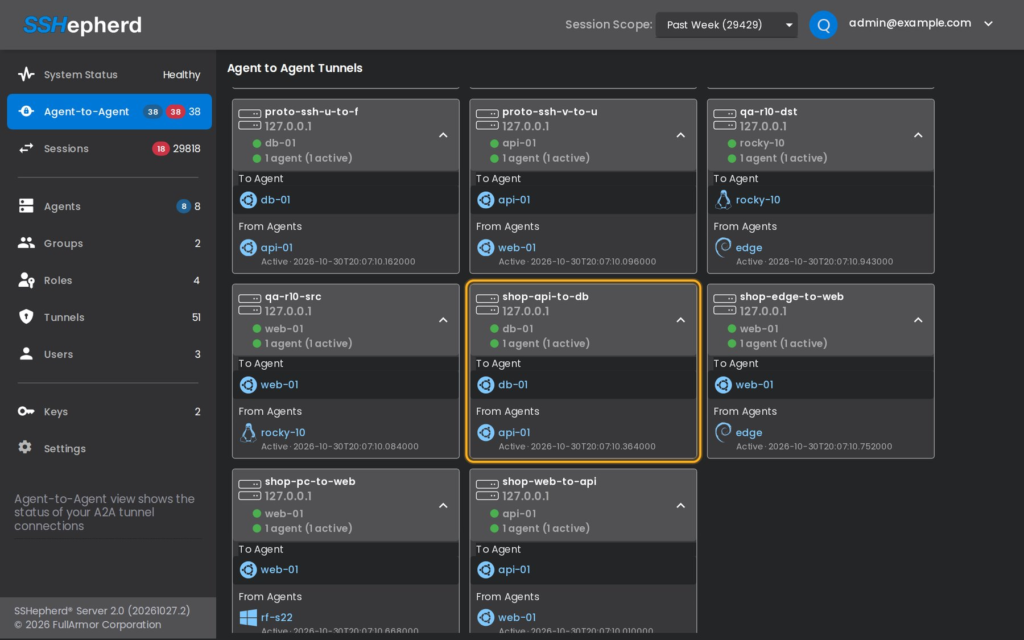
The Agent-to-Agent page shows a tile for each A2A tunnel, with its destination and “N agents (M active)”. Expand a tile to see each source agent and when it became Active.
- A source shows Inactive within about 30 seconds of stopping.
- If the destination agent stops, the tunnel shows 0 active sources.
- Both recover by themselves when the agents come back.
Sessions
Every connection through an A2A tunnel is recorded on the Sessions page as a session of type Agent, with no user. A2A traffic isn’t recorded. A busy link, such as a database connection pool, creates many sessions.
Isolation
If you isolate the source or the destination agent, in either isolation mode, its A2A tunnels stop. They restart by themselves when the agent returns to Normal. See Agent Isolation.
Change or delete an A2A tunnel
Edit or delete the tunnel on the Tunnels page, like any tunnel definition. When you delete it, each source agent removes its listener within about 20 seconds and runs its Disconnected command.
A2A tunnels don’t appear in shepctl list-tunnel. Use the Tunnels or Agent-to-Agent page.