
Administrator Console Overview
Applies to SSHepherd 2.0
Overview
The SSHepherd® Administrator Console is installed with your C3 server. Open it in a web browser at your C3 server’s URL, for example https://your.sshepherd.server, and sign in.
In the console you can manage agents, users, groups, roles, tunnels, API keys and settings, and you can watch, end and replay sessions. The console is for administration only: you can’t use it to open a connection to a protected host.
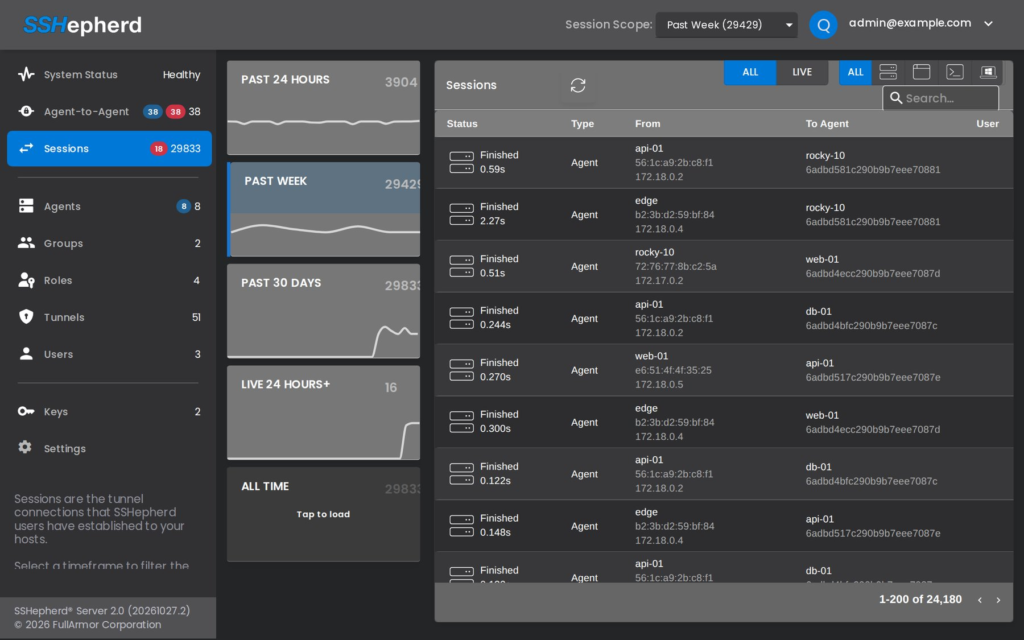
Pages
The side menu shows only the pages your role allows. Each menu item shows a count, such as the number of agents online.
| Page | What it’s for |
|---|---|
| System Status | The C3 server’s pods and the days remaining on the cluster certificate. The Healthy badge at the top of the menu summarizes this page. |
| Agent-to-Agent | The status of each Agent-to-Agent tunnel and its source agents. See Agent-to-Agent (A2A) Tunnels. |
| Sessions | Live and finished sessions, with recordings. This is the console’s home page. See Monitoring Sessions. |
| Agents | The protected hosts and their settings. See Managing Agents. |
| Groups | Groups of users and agents. See Creating Users and Groups. |
| Roles | Roles and their permissions. See Managing Roles. |
| Tunnels | Tunnel definitions. See Tunnel Definitions. |
| Users | User accounts. See Creating Users and Groups. |
| Keys | API keys. See API Keys. |
| Settings | General settings, license, certificate and identity providers. See Configuring C3 Settings. |
The user menu in the top corner has Logout.
Common controls
Most pages share the same controls:
- + creates an item.
- The trash icon deletes the selected item.
- The pencil icon edits the selected item, where editing is possible.
- The search box filters the list.
- The circular arrow refreshes the list.
- Click a column heading to sort.
- Select a row to see its details in the panel below.
Tip: On the Groups and Keys pages, the icon next to + is the delete icon. These pages have no edit icon.
System Status
System Status lists the C3 server’s database and API pods with their status, and shows how many days remain before the cluster certificate expires. The page doesn’t refresh by itself; click the refresh icon to update it.
System Status doesn’t show the ingress controller or the recording service. For a full check of the C3 server, run:
microk8s kubectl -n sshepherd-<label> get pods
microk8s kubectl -n sshepherd-ingress-rtmp get pods
Who can sign in
Any user can sign in to the console, but users with only the built-in user role see just the Agents and Tunnels pages, and the console opens on Agents. To give someone read-only or partial administration, create a role with just the permissions they need. See Managing Roles.