
Session Recording
Applies to SSHepherd 2.0
Overview
SSHepherd® can record sessions for auditing and compliance:
| Session type | What’s recorded |
|---|---|
| SSH | The terminal session as text, including what the user typed and what was displayed. |
| RDP | A video of the desktop session. |
| Generic and Agent-to-Agent | Not recorded. The session list still shows who connected, when, and how much data was sent. |
Recording is set per agent, and recordings are stored on the C3 server.
Turn recording on or off
- In the Administrator Console, click Agents and select the agent.
- Click the Settings tab.
- Select or clear Enable Recording.
- For a Windows agent, set the RDP recording quality:
- Screen recording resolution: 25–100% of the screen size.
- Screen recording FPS: 1–10 frames per second.
- Screen recording bitrate: 0.5–10 Mbps.
- Click Save.
- For a Windows agent, restart the Agent service so the new recording settings take effect.
Higher resolution, frame rate and bitrate give clearer video but larger recordings.
How RDP recording works
Windows agents send RDP video to the C3 server’s recording service on TCP port 1935. Make sure Windows agents can reach the C3 server on that port.
Note: If the recording service stops or restarts, RDP sessions that are being recorded are closed, so sessions can’t continue unrecorded.
Where recordings are stored
Recordings are kept on the C3 server’s recordings volume (recording-storage). The default volume on a single-node MicroK8s server is 10 GiB.
Recordings are deleted only when the user or agent they belong to is deleted. See Monitoring Sessions.
Play back a recording
- On the Sessions page, select the session.
- The recording plays in the detail panel:
- RDP: a video player. You can seek and play at up to 4× speed.
- SSH: a terminal replay with full scrollback. Use the player’s search box, with Previous and Next, to find text.
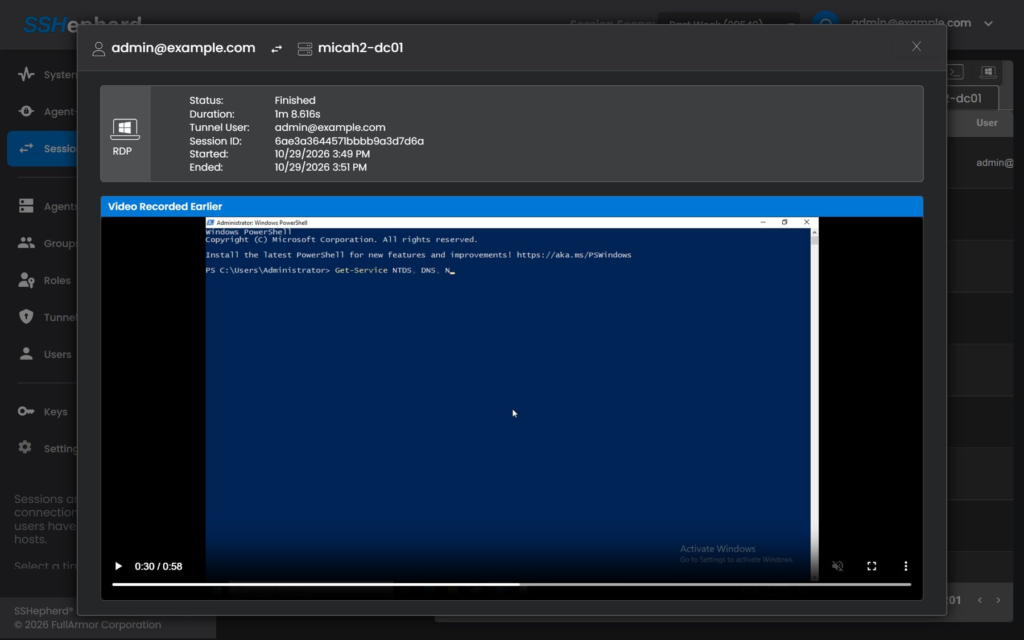
Sessions without a recording show “No recording data available, check agent configuration” (SSH), or “Session recording is not supported for this tunnel type” (Generic and Agent-to-Agent).
You need the list-recording permission to play back recordings. Users with only the built-in user role can’t view any recordings, including their own.
Note: If a user clears the screen during an SSH session (for example with
clear), the console’s player doesn’t show what came before. The full session is still stored; export it withshepctl get-recordingto review everything.
Export a recording
SSH recordings can be exported as text with shepctl:
shepctl --recordingid <session id> get-recording > session.txt