
Configuring C3 Settings
Applies to SSHepherd 2.0
Overview
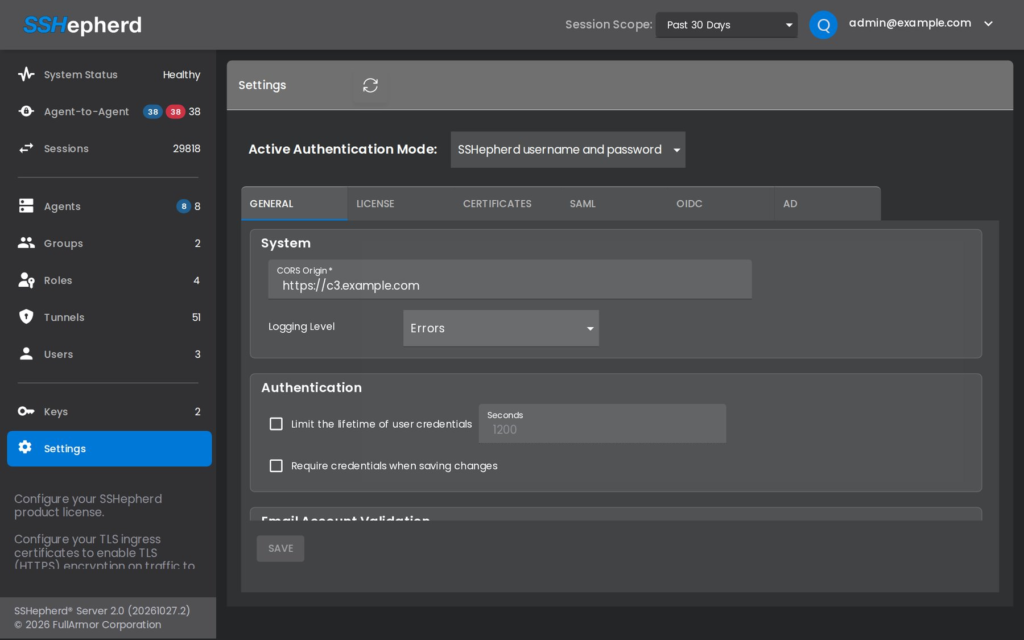
C3 server settings are on the Settings → General tab of the Administrator Console. In SSHepherd 1.x, these settings were changed by editing the C3 server’s Kubernetes StatefulSet. In 2.0, change them in the console only. Changes made by hand to the StatefulSet can be overwritten the next time someone saves this tab.
The General tab has four sections:
- System: CORS Origin, the web address allowed to call the C3 API from a browser, and the C3 server’s Logging Level.
- Authentication: Limit the lifetime of user credentials and Require credentials when saving changes.
- Email Account Validation: Check email deliverability.
- Password Reset Email Service: the mail service used for password reset emails.
The other Settings tabs are covered elsewhere: License in Licensing, Certificates in Creating the C3 Server SSL Certificate, and SAML, OIDC and AD in Configuring a Third-Party Identity Provider.
Who can change these settings
You need the built-in admin role, or a role with the manage-kubernetes permission.
Save your changes
- Sign in to the Administrator Console and go to Settings → General.
- Change the settings you need.
- Click Save.
Important: Saving the General tab restarts the C3 server’s pods. The console and tunnels are unavailable for about 2.5 minutes while the pods restart. Save changes during a maintenance window. See Troubleshooting for any issues.
Note: On a C3 server upgraded from an earlier release, apply the new release’s rbac.yaml before you save this tab. Otherwise the save fails with an error that mentions volumeClaimTemplates.
Note: With Use custom email service selected, the form requires Email Server Port, Username and Password before it saves, and the port is filled in with 25 by default.
Mail settings (password reset)
The password reset feature lets users request a reset email by clicking Forgot your password? on the C3 sign-in page. Administrators can also send a reset email from the Users page. Password reset is required for users created in bulk with shepctl create-users, because those users get a random password nobody knows.
If no mail service is set up, password reset doesn’t work: both Forgot your password? and Reset User Password fail.
You can send mail through SendGrid or through your own SMTP server.
SendGrid
You need your SendGrid API key.
- On Settings → General, under Password Reset Email Service, select Use SendGrid email service.
- Enter the key in SendGrid API Key.
- Click Save.
SMTP server
You need the server’s host name or IP address, its port, whether it uses TLS or SSL, and the user name and password of the mailbox the emails come from.
- On Settings → General, under Password Reset Email Service, select Use custom email service.
- Fill in the fields:
- Email Server: the SMTP server’s host name or IP address.
- Email Server Port: the SMTP port.
- Username and Password: the sending account.
- Default Sender: the From address.
- Use TLS for email (recommended) or Use SSL for email: whichever your server uses.
- Click Save.
After the C3 server restarts, test the setup: click Forgot your password? on the sign-in page for a test account and check that the email arrives.
Reauthentication for privileged actions
These settings make users enter their credentials again before sensitive actions, so that the person at the keyboard is really the authorized user. They’re in the Authentication section of Settings → General:
- Limit the lifetime of user credentials, with a time in Seconds (300 by default, editable once the box is ticked).
- Require credentials when saving changes.
To change them, set the fields and click Save.
Email validation
Check email deliverability, under Email Account Validation, controls how SSHepherd® checks the email addresses used as user names:
- On (the default): an address must be correctly formatted and its domain must have a valid mail (MX) record.
- Off: addresses aren’t checked for a mail record.
To change it, set Check email deliverability on Settings → General and click Save.
Logging level
Sets how much the C3 server writes to its logs: Errors (the default), Warnings, Informational or Debugging. At the default level, the C3 server logs very little. Raise it temporarily when you troubleshoot a problem, then set it back, as each change restarts the C3 server. See Troubleshooting.
To see the C3 server’s logs:
microk8s kubectl -n sshepherd-<label> logs statefulset/python-flask