
Managing Agents
Applies to SSHepherd 2.0
Overview
Agents are the hosts you protect with SSHepherd®. In SSHepherd 1.x, the console called them Hosts. When you install and register the Agent on a server, it appears on the Agents page of the Administrator Console.
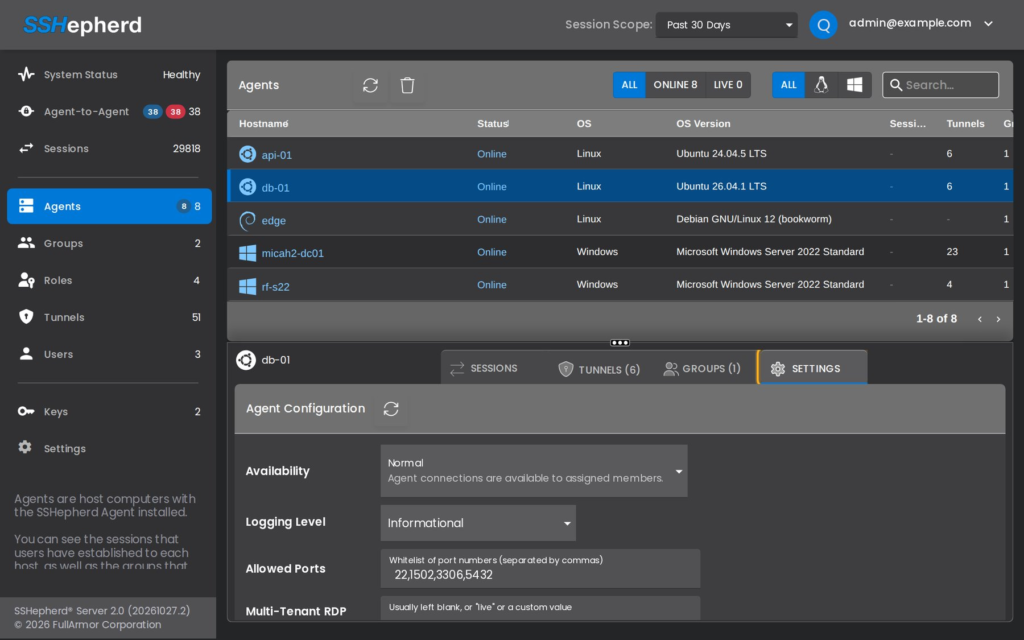
The Agents page lists each agent with its operating system and version, whether it’s online, its Agent version and its number of sessions. Filter by Online, Linux or Windows, or search by name. An agent shows as offline within seconds of its service stopping, and as online again within seconds of it starting.
Select an agent to see its Sessions, Tunnels, Groups and Settings tabs.
Add an agent
To add an agent, install the Agent on the host and register it with the C3 server:
shepagent --url https://your.sshepherd.server registerSee Installing the Agent for the full steps.
Agent settings
To change an agent’s settings:
- On the Agents page, select the agent.
- Click the Settings tab.
- Make your changes and click Save.
You need the modify-agent-config permission, and access to the agent.
| Setting | What it does |
|---|---|
| Availability | Normal, Isolated with Admin Access or Fully Isolated. See Agent Isolation. Takes effect immediately. |
| Logging Level | How much the Agent writes to its log: Errors (the default), Warnings, Informational or Debugging. Raise it while troubleshooting, then set it back. The new level takes effect when the Agent service restarts, so restart it after each change. |
| Allowed Ports | The ports on the host that users can reach with their own Generic tunnels (shepctl --relayport), such as 80 for a web server. Generic tunnel definitions aren’t limited by this list. Enter port numbers between 1 and 65535, separated by commas. Changes reach the agent within seconds, with no restart. |
| Enable Recording | Records SSH and RDP sessions to this agent. See Session Recording. |
| Screen recording resolution, FPS and bitrate | Windows agents only. Resolution 25–100%, 1–10 frames per second, bitrate 0.5–10 Mbps. Restart the Agent service after changing them. |
| Multi-Tenant RDP Channel | Optional setting that specifies the RDP channel identifier used in a multi-tenant environment. Typically left blank, but may be set to live or a custom value depending on the deployment configuration. |
Note: You can’t remove the last port from Allowed Ports in the console: the list looks empty, but the agent keeps allowing the old port. To close all ports, edit the agent’s configuration file:
- Stop the Agent service.
- Back up the configuration file:
/etc/SSHepherd/agent.confon Linux, orC:\ProgramData\sshepherd\agent.confon Windows.- Delete the
"whitelist"entry from the file.- Start the Agent service.
To swap one port for another, add the new port before removing the old one.
Agent commands on the host
On the host itself, run these as administrator (Windows) or with sudo (Linux):
| Command | Shows |
|---|---|
shepagent info | The host ID, the C3 server URL, and whether the Agent is registered. |
shepagent version | The Agent version. |
shepagent list-whitelist | The agent’s Allowed Ports. |
shepagent list-tunnel | The tunnel definitions the agent knows about. |
Remove an agent
Uninstalling the Agent doesn’t remove the agent from the C3 server. Uninstalling leaves its configuration on the host, so if you reinstall and register again, the host keeps its host ID and its group memberships.
Important: Removing an agent from the C3 server also permanently deletes:
- all its sessions and recordings;
- every tunnel definition that points to it.
If you need the agent’s history for auditing, leave the record in place. An offline agent does no harm.
To remove an agent completely:
- Check whether the agent has live sessions on the Sessions page, and end them. Removing an agent doesn’t end sessions that are already running.
- Uninstall the Agent from the host.
- Remove the agent in the Administrator Console:
- Click Agents.
- Select the agent.
- Click Delete Host.
- Click Yes to confirm. If the agent still has live sessions, a second prompt lists them; click Yes again. Those sessions keep running, so end them first (step 1).
<host id>is the agent’s host ID fromshepctl list-host:shepctl --hostid <host id> remove-hostshepctl doesn’t ask for confirmation and prints nothing when it succeeds.
The agent disappears from the Agents page and from its groups. If the Agent is still installed, it can no longer connect. To add the host again, register it, which gives it a new host ID.