
Creating an RDP Session
Applies to SSHepherd 2.0
Overview
SSHepherd® opens Remote Desktop (RDP) sessions to Windows hosts without an open RDP port. You can connect from the graphical Control App or from the command-line tool, shepctl, on Windows and Linux.
Before you start:
- The Windows host has the SSHepherd® Agent installed and registered.
- You and the host are in the same group, or the host’s administrator has given you an RDP tunnel definition.
Using the Control App
Open a tunnel your administrator created
If your administrator has given you an RDP tunnel definition, it’s already in your list:
- Start the SSHepherd® Control App and sign in.
- Switch on the RDP tunnel. The Control App opens the tunnel and starts your Remote Desktop client, connected to
127.0.0.1on the tunnel’s local port. - Sign in to Windows as usual.
- When you close the Remote Desktop window, switch the tunnel off.
Create your own RDP tunnel
- Start the SSHepherd® Control App and sign in with your C3 server URL, user name (email address) and password.
- Click + to create a tunnel.
- Choose the RDP type.
- In To Agent, select the host. The list shows the hosts you can reach.
- Enter a Name for the tunnel.
- Leave Local Port on Automatic to use a random free port, or choose a specific port.
- Click Save.
- Switch on the tunnel to start the session.
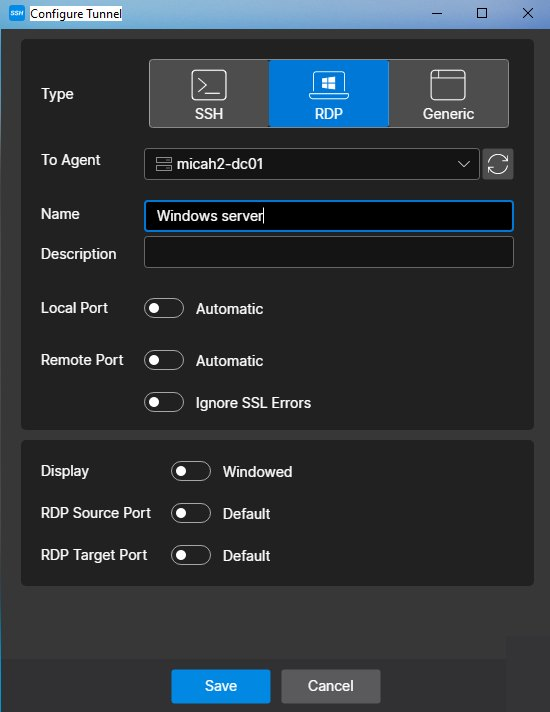
The RDP form also has Description, Remote Port, Ignore SSL Errors, Display (Windowed by default), RDP Source Port and RDP Target Port. Leave the ports on Automatic or Default unless your administrator tells you otherwise.
The Control App opens each tunnel in a separate shepctl console window. Leave that window open while you work.
Using shepctl
- Open a terminal or Command Prompt and sign in to your C3 server:
shepctl --url https://your.sshepherd.server login - Enter your user name and password when prompted. To check you’re signed in, run
shepctl whoami. - List the hosts you can reach, and note the host name or host ID of the Windows host:
shepctl list-host - Start the RDP session, where
WinSvr2022is the host name:shepctl --hostname WinSvr2022 mstsc-tunnelOr use the host ID:shepctl --hostid <host id> mstsc-tunnel
shepctl opens the tunnel and starts the Remote Desktop client (mstsc). When the Remote Desktop client closes, the tunnel closes by itself.
Options
| Option | Use |
|---|---|
--port <port> | Use a fixed local port instead of a random one. Replaces --srcrdpport, which is deprecated. |
--tgtrdpport <port> | The RDP port on the Windows host, if it isn’t 3389. |
--tunnelid <tunnel id> | Open an RDP tunnel definition instead: shepctl --tunnelid <tunnel id> tunnel. |
Using another Remote Desktop client
To use any RDP client, open a plain tunnel to port 3389 and point the client at it. Port 3389 must be in the host’s Allowed Ports.
shepctl --hostid <host id> --relayport 3389 --port 13389 tunnelThen connect your RDP client to 127.0.0.1:13389.
If the connection drops
If the tunnel closes during a session, for example because of a network change, Windows keeps your desktop session running in a disconnected state. Start the tunnel again on the same local port, and the Remote Desktop client reconnects to the same session. Use --port so the tunnel always uses the same local port.